Enter Report Information in Accounting Software
Overview
Section titled “Overview”This page explains a simple way to enter daily totals shown on the Pokepay app’s Reports screen into accounting software. This can help make daily accounting work more efficient.
⚠️ Note: This page is for reference only. The content on this page is an example of general accounting treatment. Specific treatment and account titles may vary depending on your business and circumstances. Always consult an accountant, tax advisor, or another expert, and apply the appropriate treatment.
1. Open Reports in Pokepay
Section titled “1. Open Reports in Pokepay”First, open the report for the date or period you want to process in the app.
- Tap Menu in the navigation bar.
- Tap Reports under features.
- Select the date or period at the top of the screen and show the report for the date or period you want to process.
2. Enter Report Items in Accounting Software
Section titled “2. Enter Report Items in Accounting Software”Enter the totals shown on the Reports screen in your accounting software. The examples below assume entry into cloud accounting software such as Money Forward Cloud or freee, and explain typical journal entries.
ℹ️ Payment
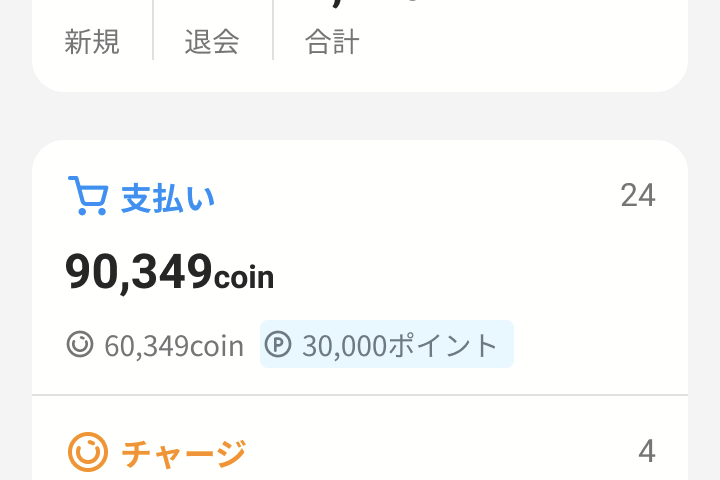
Section titled “ℹ️ Payment”Enter the charged balance used and Point Balance used separately.
Debit account Credit account Description Advances received Sales Pokepay payment (charged balance used) Free points Sales Pokepay payment (Point Balance used)
ℹ️ Cash Charge
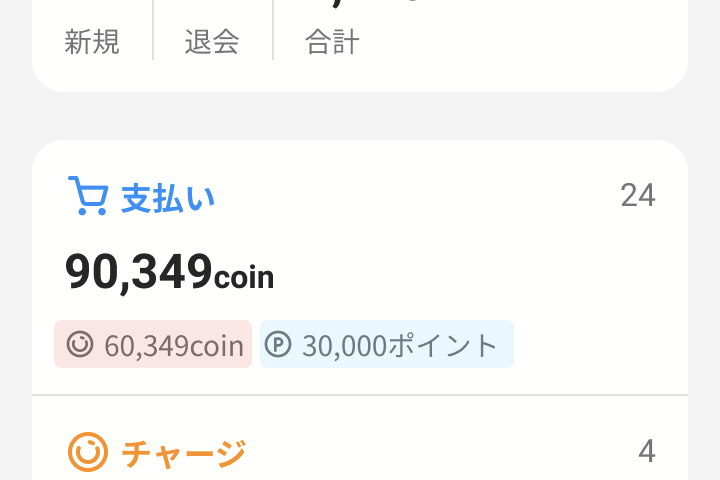
Section titled “ℹ️ Cash Charge”
Debit account Credit account Description Cash Advances received Pokepay cash charge amount
ℹ️ Credit Card Charge
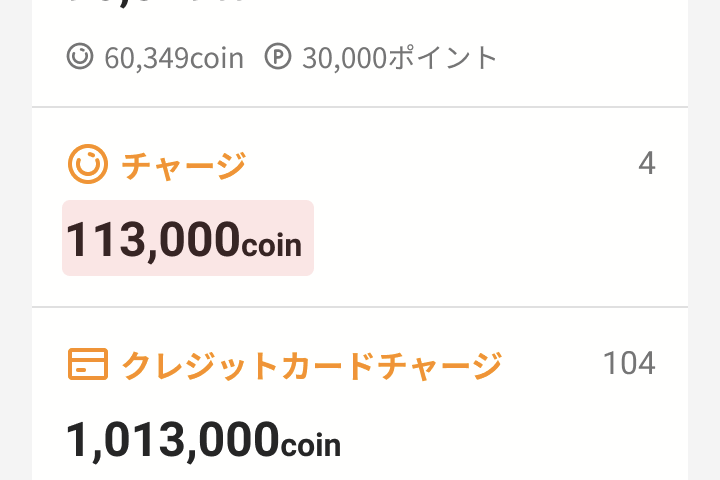
Section titled “ℹ️ Credit Card Charge”
Debit account Credit account Description Accounts receivable Advances received Pokepay Credit Card Charge amount
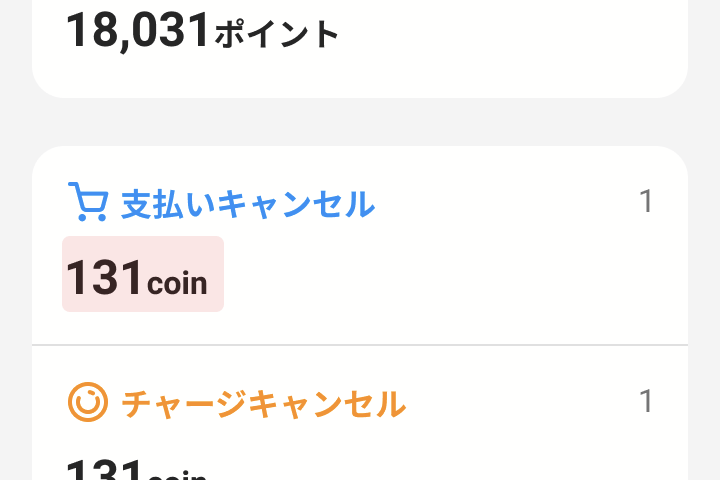
ℹ️ Cancellations
Section titled “ℹ️ Cancellations”If a transaction is cancelled, enter the reverse journal entry for the original transaction.
Example: when a Payment is cancelled
Debit account Credit account Description Sales Advances received Pokepay payment cancellation
ℹ️ Balance Expiration
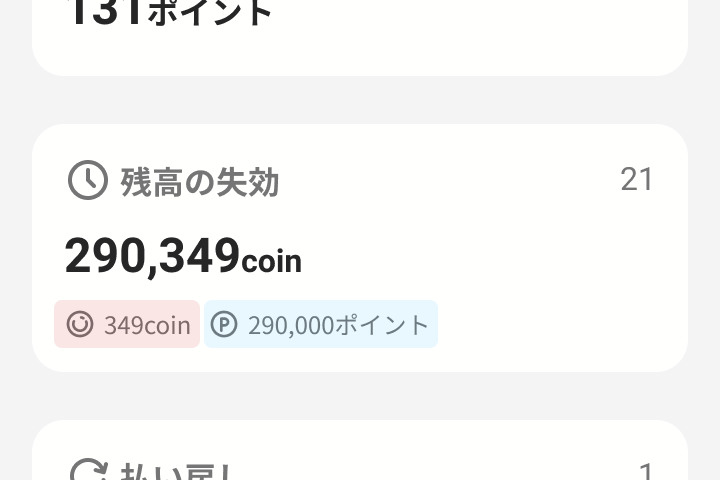
Section titled “ℹ️ Balance Expiration”
Debit account Credit account Description Advances received Miscellaneous income Expired Charged Balance Free points Miscellaneous income Expired Point Balance When a member’s Charged Balance or Point Balance expires, reverse the liability previously recorded as advances received or free points and record it as miscellaneous income.
ℹ️ Refund
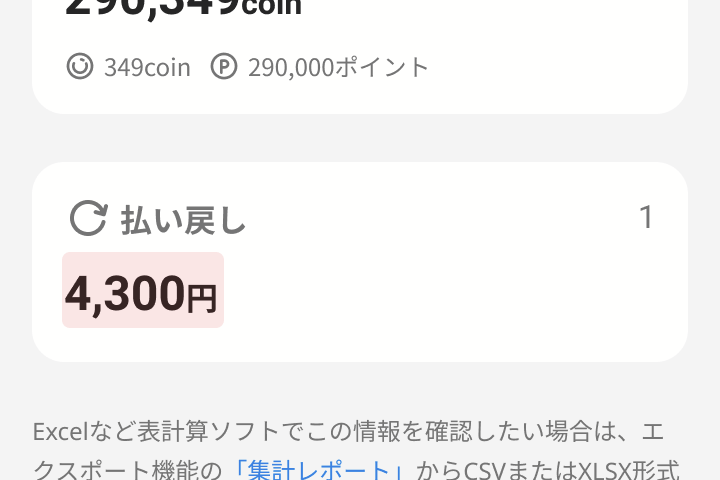
Section titled “ℹ️ Refund”This is a journal entry for refunding a member’s Charged Balance in cash when ending service provision.
Debit account Credit account Description Advances received Cash Refund due to service termination
Tip: If You Only Want to Enter Point Balance Usage
Section titled “Tip: If You Only Want to Enter Point Balance Usage”If your internal accounting rules do not require entries for Point Reward or expiration, enter only the amount used as follows.
ℹ️ Point Payment
Section titled “ℹ️ Point Payment”
Debit account Credit account Description Sales promotion expense Sales Pokepay payment (Point Balance used)