Send a Message to a Member
## Overview
You can exchange messages with members.
In addition to text, you can send photos, files, and points to members, and you can also request payments.
You can register commonly used phrases as template messages and insert them quickly.
Messages can also be scheduled.
## Send a Message
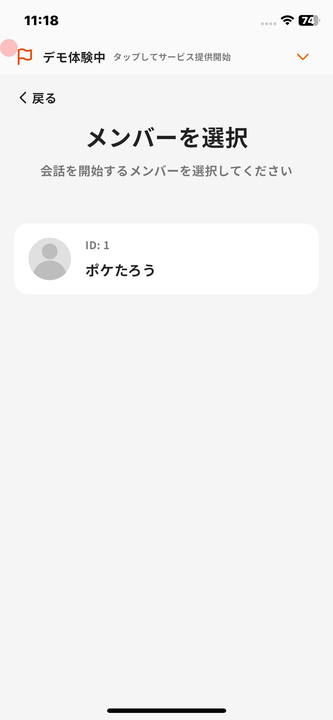
Follow these steps to send a message.
1. Tap "Message" in the navigation bar.
2. Tap "+ New chat" at the top right.
3. Tap the member you want to message.
4. Enter a message and tap the send icon.
#### You can send the following from the "+" button next to the input field
- Add and send from the photo library
- Add and send from files
- Take and send a photo
- Send Points
- Request Payment
- Select Template Message
- Schedule Message
Overview
Section titled “Overview”You can exchange messages with members.
In addition to text, you can send photos, files, and points to members, and you can also request payments.
You can register commonly used phrases as template messages and insert them quickly.
Messages can also be scheduled.
Send a Message
Section titled “Send a Message”
Follow these steps to send a message.
- Tap “Message” in the navigation bar.
- Tap ”+ New chat” at the top right.
- Tap the member you want to message.
- Enter a message and tap the send icon.
You can send the following from the ”+” button next to the input field
Section titled “You can send the following from the ”+” button next to the input field”- Add and send from the photo library
- Add and send from files
- Take and send a photo
- Send Points
- Request Payment
- Select Template Message
- Schedule Message
