Start with a Plan Contract
## Overview
Subscribe to a plan from the free trial and start providing your e-money service.
The settings you configured during the free trial are carried over into the application flow, where you can confirm and change them.
<div class="notion-yellow-bg">
> ⚠️ Prepare the representative's identity document. Supported documents include My Number Card, driver's license, Residence Card, and passports with an address.
</div>
## Apply for a Plan Contract
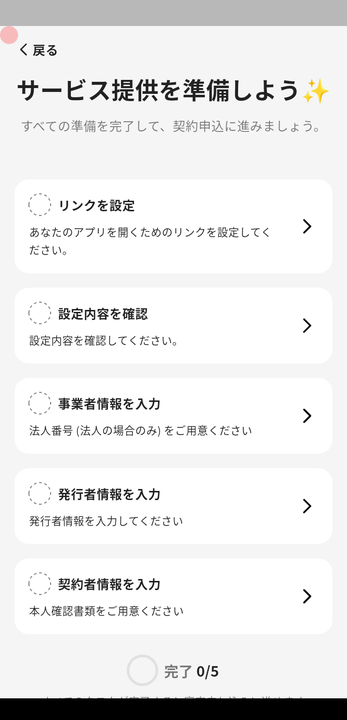
1. Tap **Start Service Provision** on Home.
2. Configure each required item.
#### Confirm settings
- Set the e-money region and timezone.
- Set the e-money name / unit.
- Set the exchange rate (cannot be changed after service launch).
- Configure Payment.
- Set the maximum payment per transaction.
- Configure Charge.
- Set whether to use the charge feature.
- Set the maximum charged balance per member.
- Set the maximum charge per transaction.
- Set the charged balance expiration date.
- Configure Points.
- Turn Points on if you use them, or off if you do not.
- Confirm or change Point Rebate when charging.
- Confirm or change Point Rebate when paying.
- Set the point balance expiration date.
1. Set up the link.
2. Enter business information.
3. Enter member contact information.
4. Enter contract information.
5. Tap **Proceed to Review Application**.
6. Read the notes and important information, then proceed to plan selection.
7. Enter a referral code and tap **Continue**, or tap the option for not having a referral code.
8. Select a plan and continue.
9. Register the credit card used for plan payment.
10. After the review is approved, reopen the app and follow the instructions to start using the service.
[Review Process Details](/en/help/app/review-process/)
Overview
Section titled “Overview”Subscribe to a plan from the free trial and start providing your e-money service.
The settings you configured during the free trial are carried over into the application flow, where you can confirm and change them.
⚠️ Prepare the representative’s identity document. Supported documents include My Number Card, driver’s license, Residence Card, and passports with an address.
Apply for a Plan Contract
Section titled “Apply for a Plan Contract”
- Tap Start Service Provision on Home.
- Configure each required item.
Confirm settings
Section titled “Confirm settings”- Set the e-money region and timezone.
- Set the e-money name / unit.
- Set the exchange rate (cannot be changed after service launch).
- Configure Payment.
- Set the maximum payment per transaction.
- Configure Charge.
- Set whether to use the charge feature.
- Set the maximum charged balance per member.
- Set the maximum charge per transaction.
- Set the charged balance expiration date.
- Configure Points.
- Turn Points on if you use them, or off if you do not.
- Confirm or change Point Rebate when charging.
- Confirm or change Point Rebate when paying.
- Set the point balance expiration date.
- Set up the link.
- Enter business information.
- Enter member contact information.
- Enter contract information.
- Tap Proceed to Review Application.
- Read the notes and important information, then proceed to plan selection.
- Enter a referral code and tap Continue, or tap the option for not having a referral code.
- Select a plan and continue.
- Register the credit card used for plan payment.
- After the review is approved, reopen the app and follow the instructions to start using the service.
