Create a New E-money
## Overview
You can add another e-money when you want to operate a different e-money service.
Create another e-money when you want to separate apps or use different settings for a different service.
## Create a New E-money
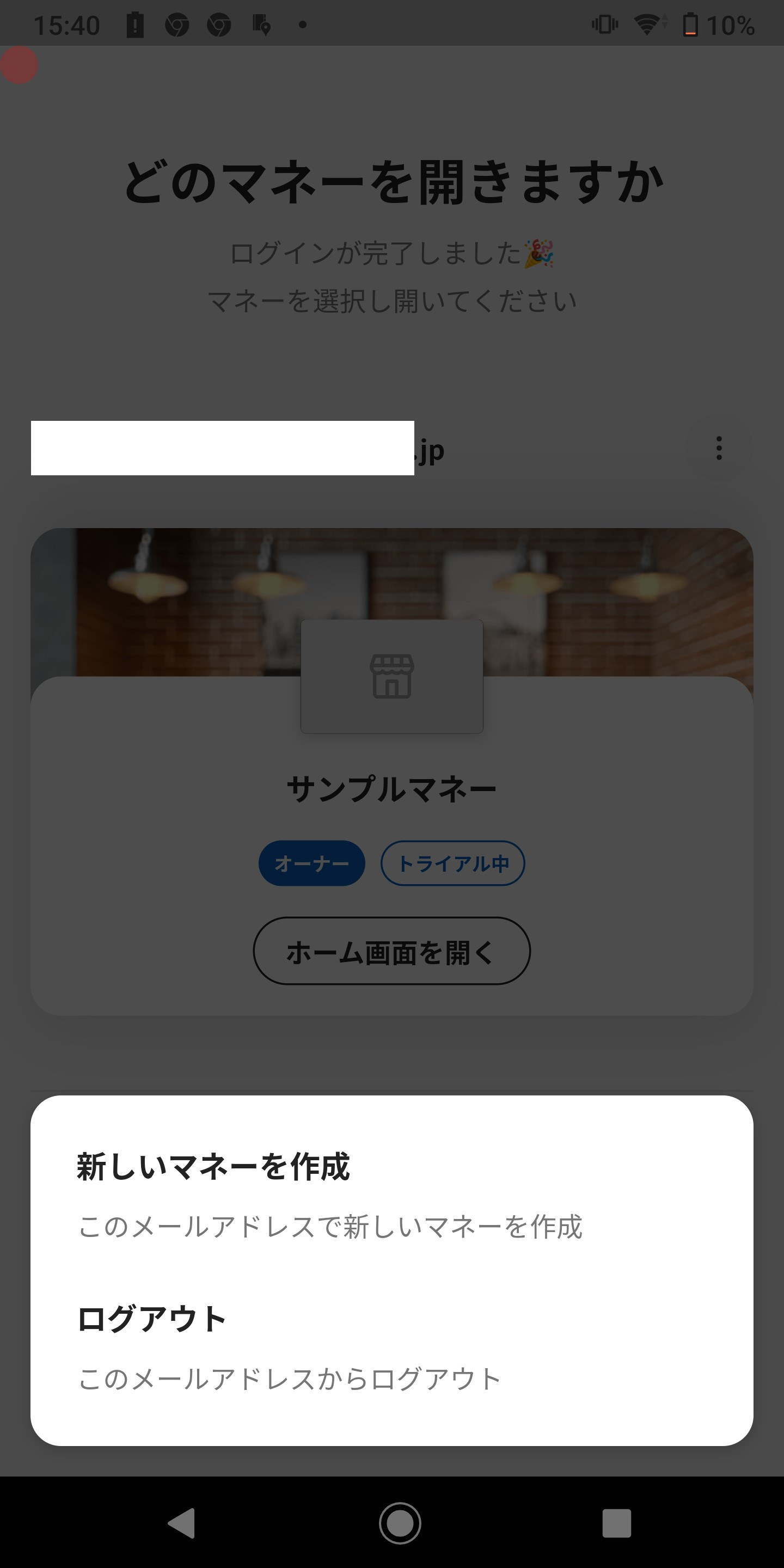
1. Tap the item at the top of Home where the e-money name is shown.
2. Tap **Switch e-money**.
3. Tap the three-dot menu **︙** in the upper-right corner.
4. Tap **Create new e-money**.
5. Tap **Next**.
6. Follow the setup flow to create the e-money.
[Set the E-money Name and Unit](/en/help/app/set-pay-name-and-unit/)
Overview
Section titled “Overview”You can add another e-money when you want to operate a different e-money service.
Create another e-money when you want to separate apps or use different settings for a different service.
Create a New E-money
Section titled “Create a New E-money”
- Tap the item at the top of Home where the e-money name is shown.
- Tap Switch e-money.
- Tap the three-dot menu ︙ in the upper-right corner.
- Tap Create new e-money.
- Tap Next.
- Follow the setup flow to create the e-money.
