Configure Design Settings
Overview
Section titled “Overview”You can configure the app icon, app images, sounds, and information that are shown to members.
Use these settings to match the app to your shop or brand.
Edit Artwork
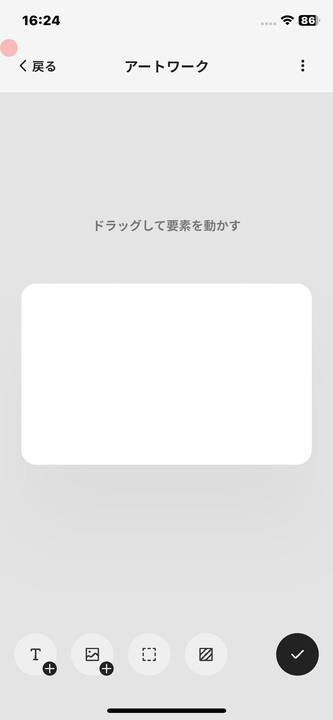
Section titled “Edit Artwork”Open the artwork editor with the following steps.
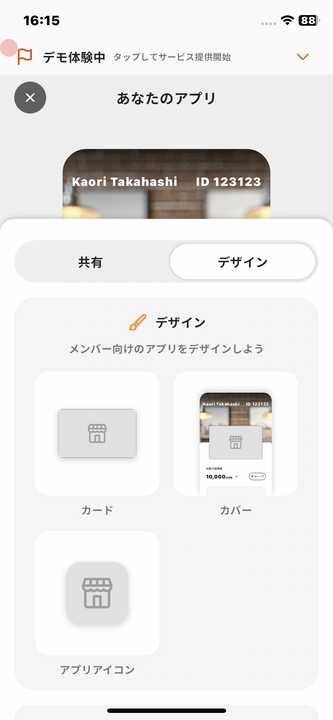
- Tap Design on Home.
- Select the design you want to edit.
- Tap Edit.
You can edit Card, Cover, and App Icon designs. You can also edit the text shown on the E-money Info Page.
Add Text
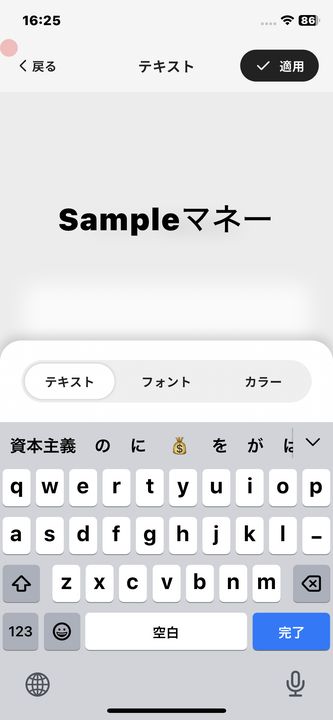
Section titled “Add Text”- Tap the T icon in the editing tools at the bottom of the screen.
- Use the Text, Font, Color, and Size tabs to design the text.
- Tap the alignment button above the text to switch between left, center, and right alignment.
- Press return on the keyboard to split the text over more than one line.
- Tap Apply in the upper-right corner.
- Use two fingers to resize the text, or drag it to move it.
Upload a Photo
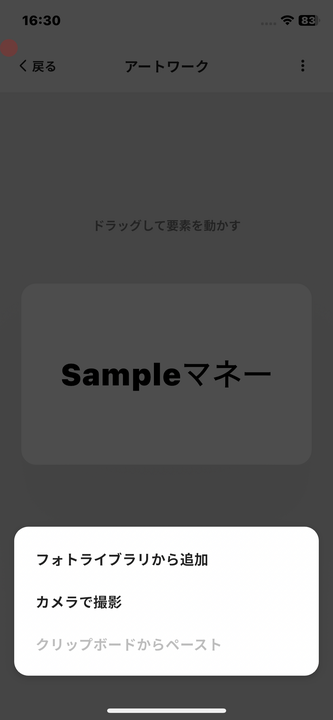
Section titled “Upload a Photo”- Tap the photo icon in the editing tools.
- Tap Photo Library or Add from Files and select an image.
- Resize or move the image as needed.
Add an Outline
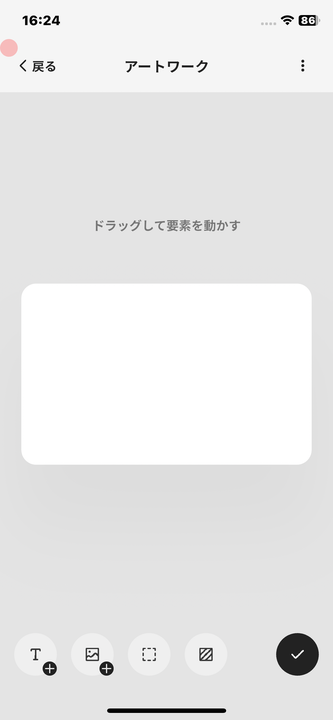
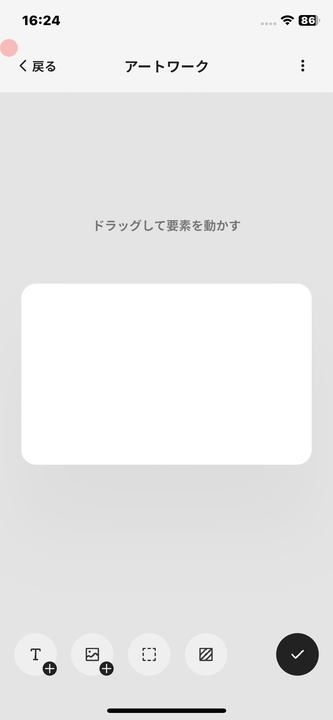
Section titled “Add an Outline”- Tap the pencil icon in the editing tools.
- Adjust the size with + and - on the Size tab.
- Select a color from the Color tab.
Change the Background
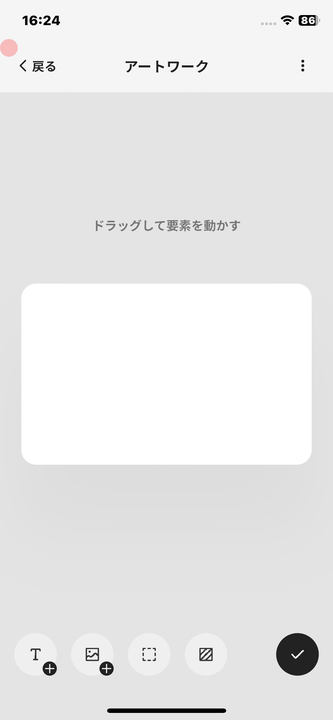
Section titled “Change the Background”- Tap the background icon at the right edge of the editing tools.
- On the Background Image tab, tap Tap to upload.
- Select an image from Photo Library or Add from Files.
You can also set a single background color from the Background Color tab.
Confirm the Design
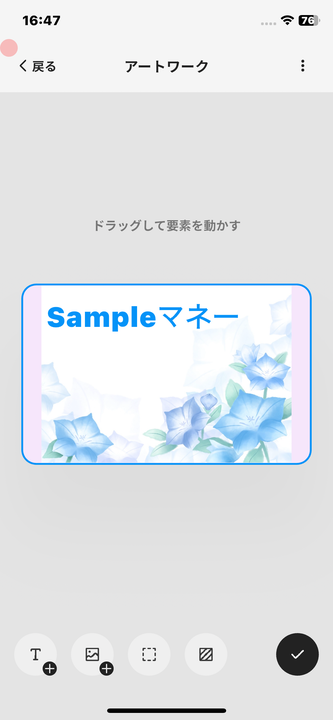
Section titled “Confirm the Design”When all settings are complete, tap the check button in the lower-right corner.
App Icon
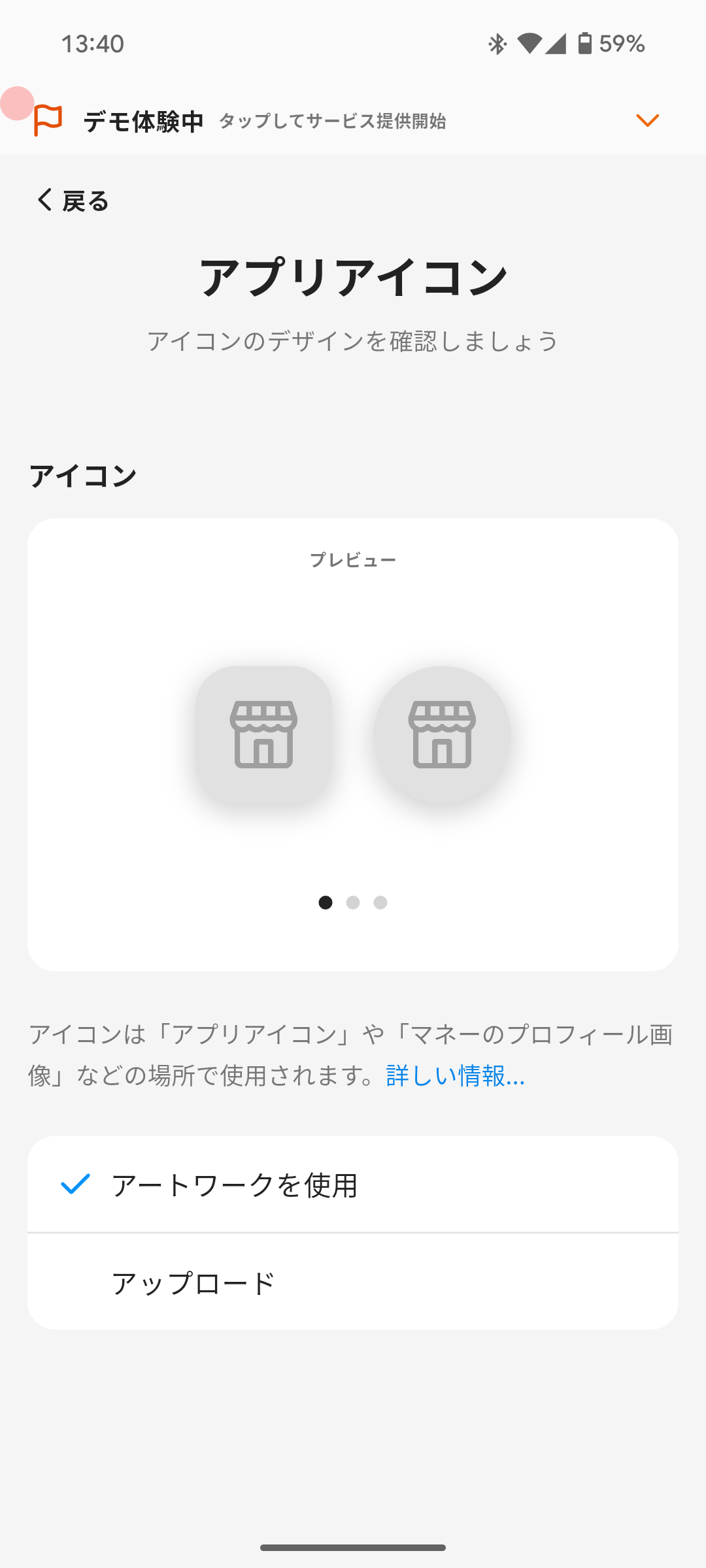
Section titled “App Icon”Set the icon that appears on the member’s home screen.
- Tap Design on Home.
- Select App Icon in the Design section.
- Select Use Artwork or Upload.
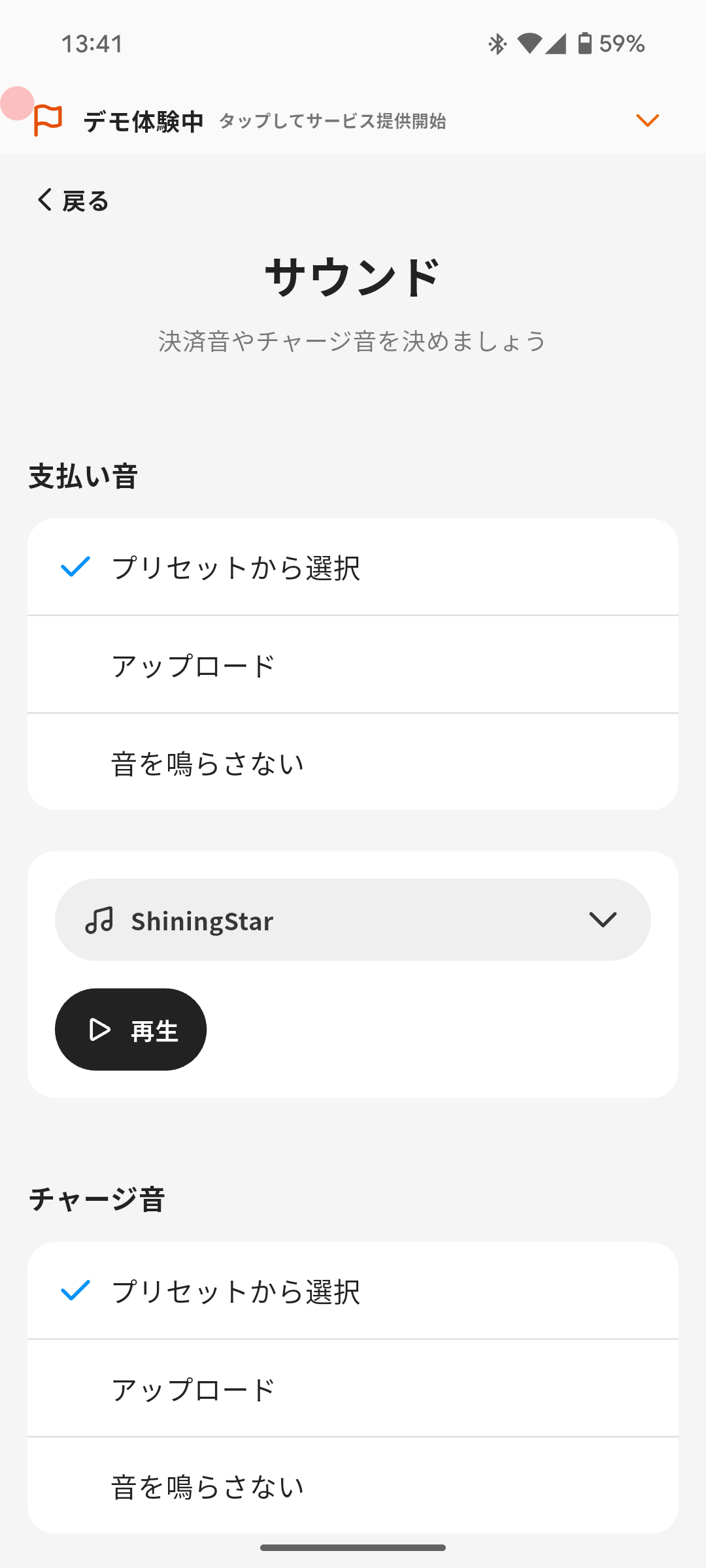
Set the sound played when a payment, charge, or point reward occurs.
You can set different sounds for payment, charge, and point reward actions.
- Tap Design on Home.
- Select Sound.
- Select Choose from Presets, Upload, or No Sound.
Cover Image
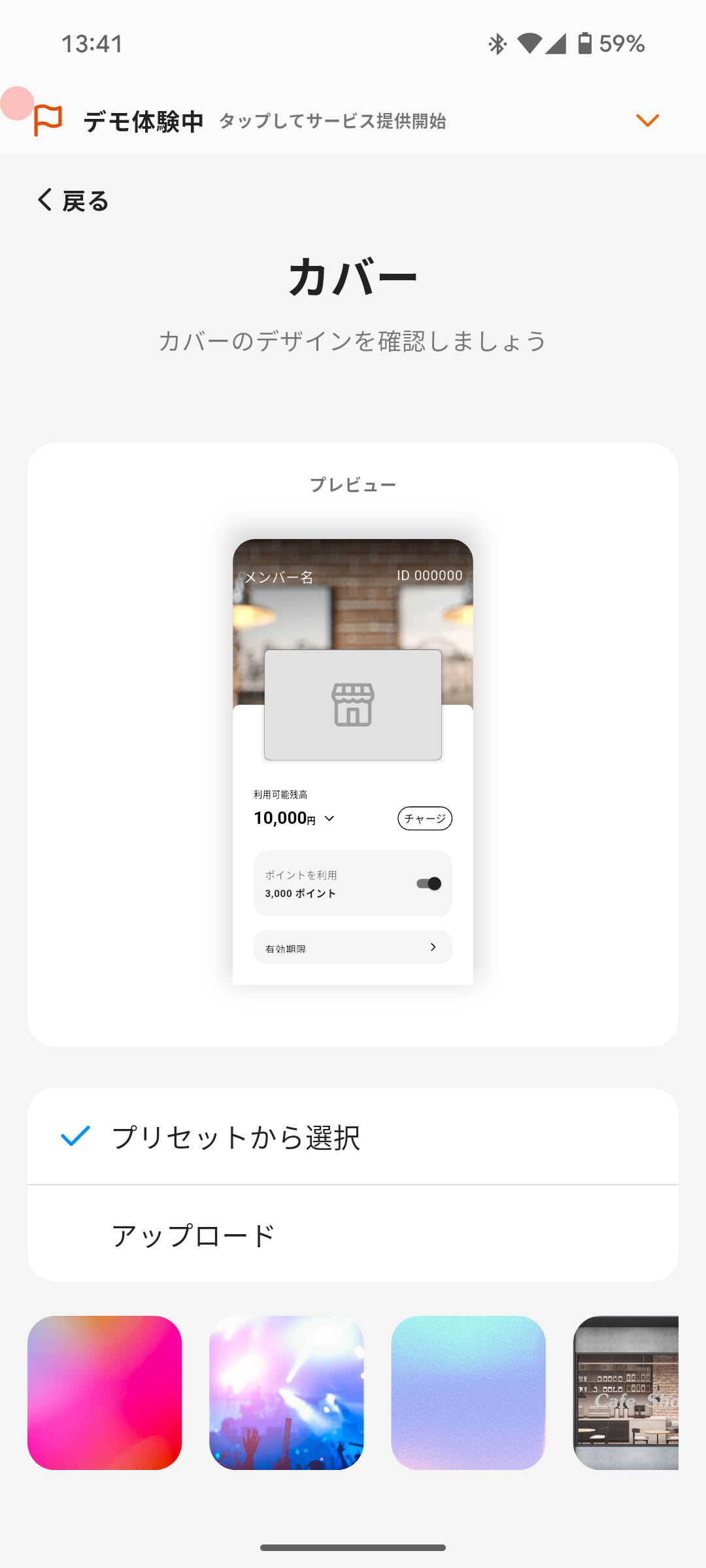
Section titled “Cover Image”Set the cover image shown on the Home tab of the member app.
- Tap Design on Home.
- Select Cover in the Design section.
- Select Choose from Presets or Upload.
E-money Info Page
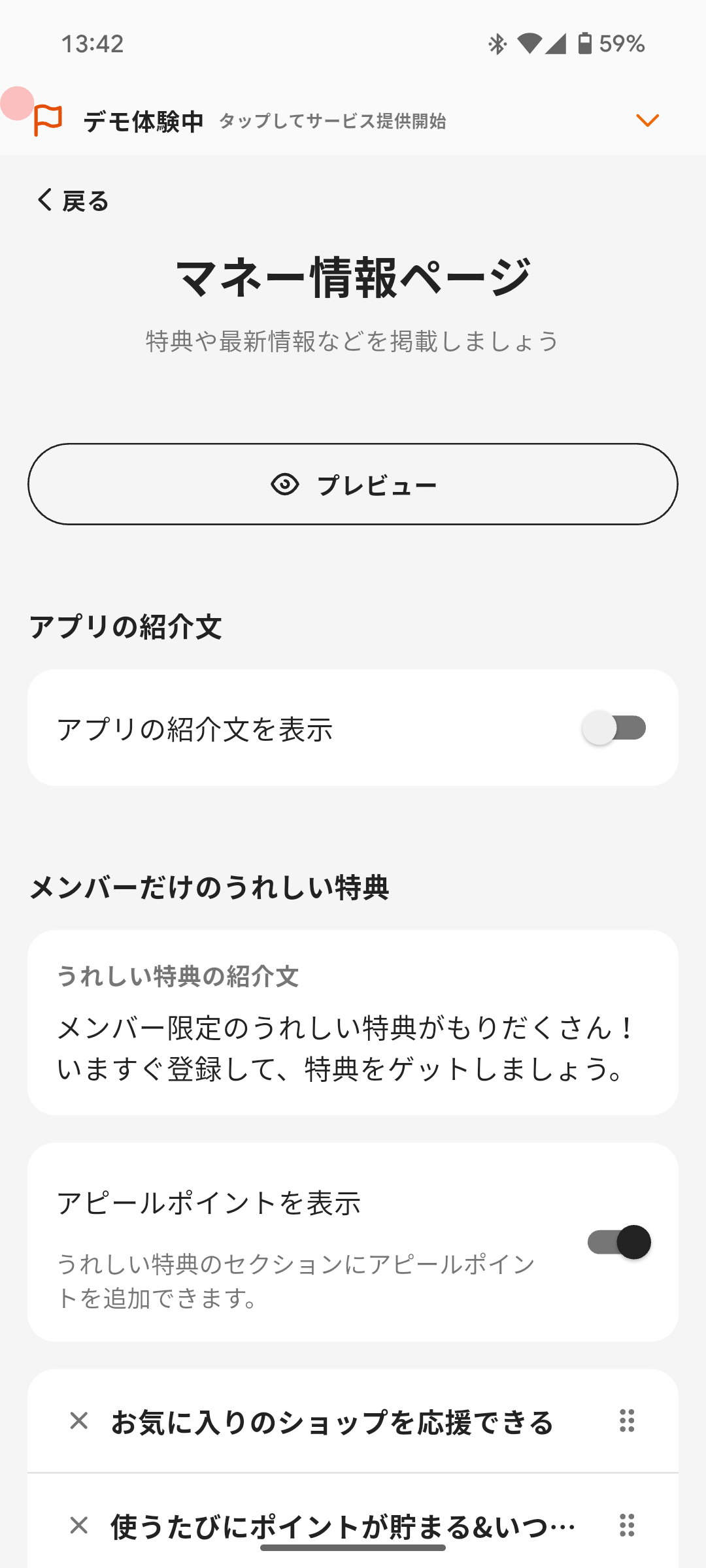
Section titled “E-money Info Page”Configure the E-money Info Page shown when customers scan the installation QR code.
- Tap Design on Home.
- Select E-money Info Page in the Design section.
- Update the sections you want to show, such as App Introduction, Great benefits for members only, Appeal Point, and News.
- Tap Preview and confirm that the page looks correct.
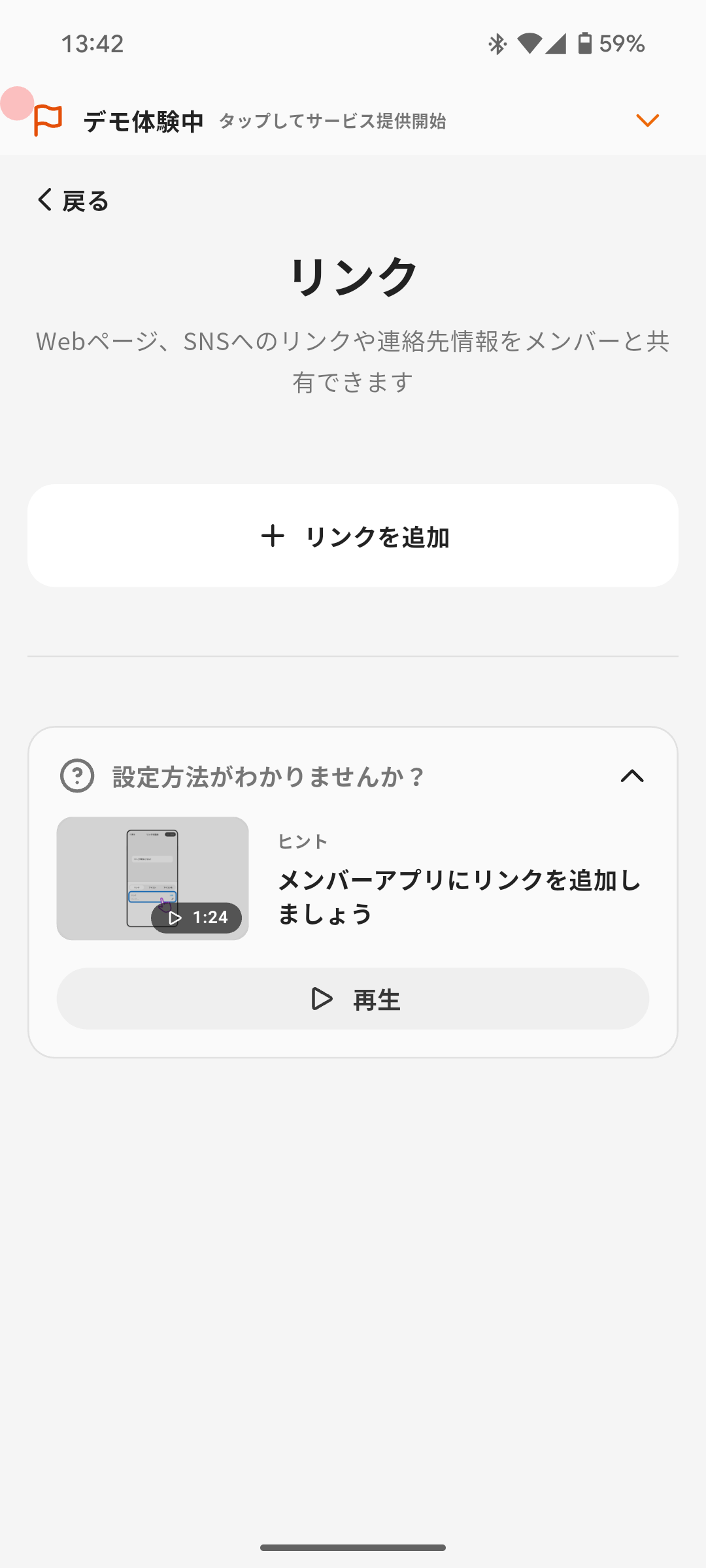
Share your website, social media links, and contact information with members.
- Tap Design on Home.
- Select Link in the Design section.
- Tap Add Link and select URL, phone number, email address, or address.
- Enter the label and select an icon.
Upload Notes
Section titled “Upload Notes”⚠️ Note
Use only images and audio files for which you have cleared the necessary rights. Pocket Change, Inc. is not responsible for disputes caused by using materials without permission from rights holders.
