Send a Push Announcement
## Overview
Send messages such as campaigns and discounts to your members.
You can notify members by push notification with a title, message, and images.
You can also see members' reactions through likes.
## Create News
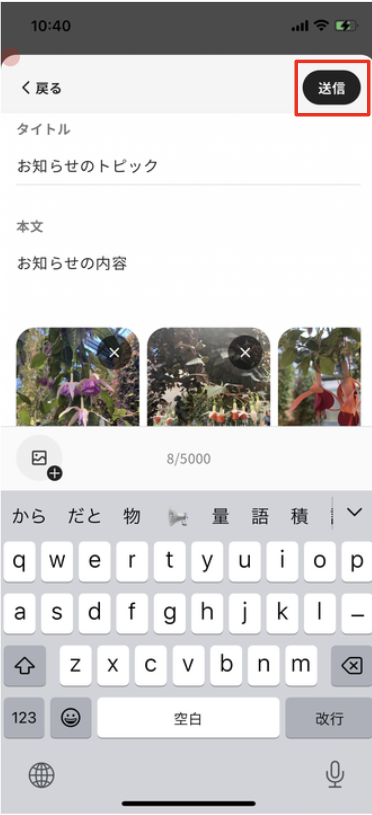
Follow these steps to create News.
1. Tap "Menu" in the navigation bar.
2. Tap "News".
3. Tap "New post".
#### Add images
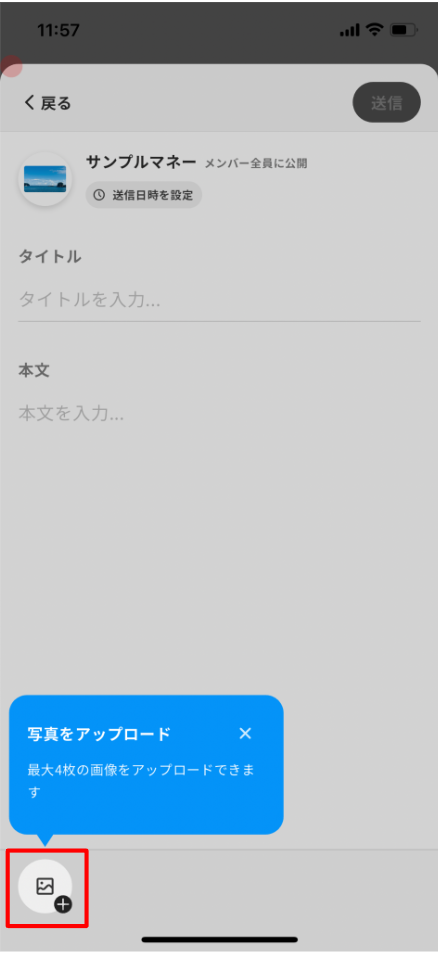
1. Tap the image icon.
2. Select where to add the image from.
3. Select an image and tap "Add".
4. Tap "Done".
4. Enter "Title" and "Text".
5. Tap "Next", review the preview, and tap "Post".
<div class="notion-gray-bg">
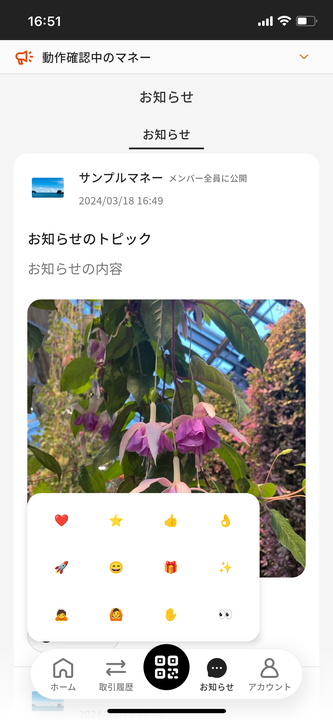
> ℹ️ Members can like the News you sent.
>
> You can check who reacted from each News item.
>
> 
</div>
### Set the Send Date and Time
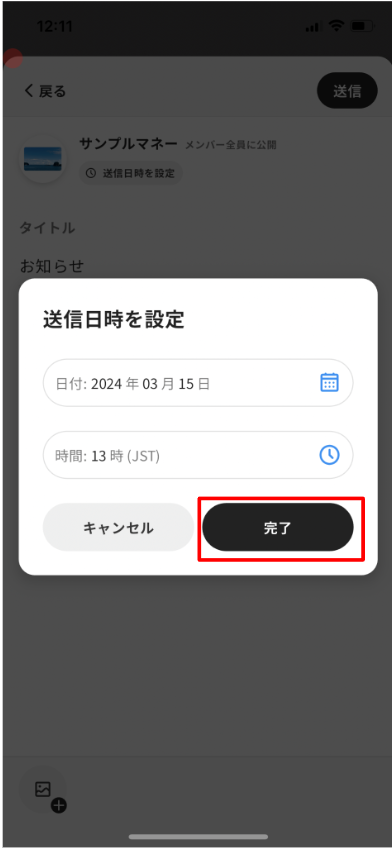
1. Tap "Set Date and Time".
2. Set the date and time, then tap "Done".
3. Tap "Schedule".
4. Check it from the "Scheduled" tab.
### Save News as Draft
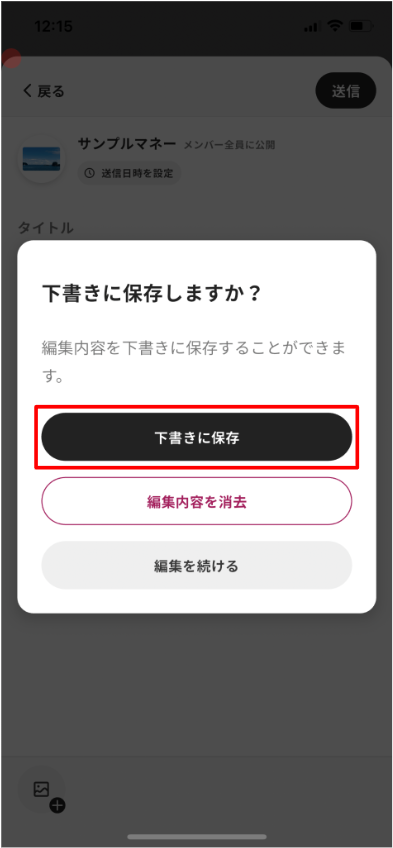
1. Tap "Back".
2. Tap "Save as draft".
3. Check it from the "Drafts" tab.
### Edit News
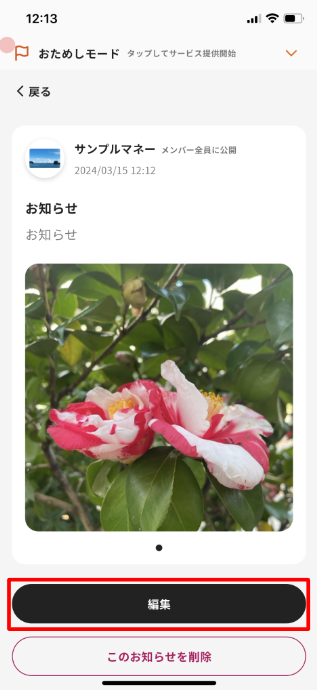
1. Tap "Edit" on the News details screen.
2. Edit the content and tap "Next".
3. Review the preview and tap "Update".
### Delete News
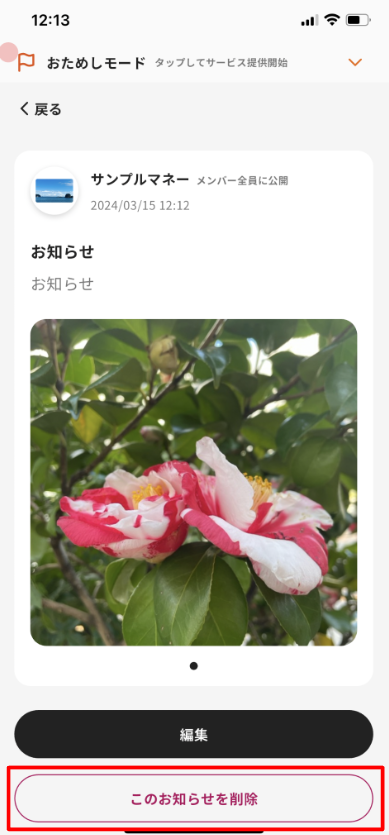
1. Tap "Delete" on the News details screen.
2. Confirm the dialog to delete the News.
Overview
Section titled “Overview”Send messages such as campaigns and discounts to your members.
You can notify members by push notification with a title, message, and images.
You can also see members’ reactions through likes.
Create News
Section titled “Create News”
Follow these steps to create News.
- Tap “Menu” in the navigation bar.
- Tap “News”.
- Tap “New post”.
Add images
Section titled “Add images”
-
Tap the image icon.
-
Select where to add the image from.
-
Select an image and tap “Add”.
-
Tap “Done”.
-
Enter “Title” and “Text”.
-
Tap “Next”, review the preview, and tap “Post”.
ℹ️ Members can like the News you sent.
You can check who reacted from each News item.

Set the Send Date and Time
Section titled “Set the Send Date and Time”
- Tap “Set Date and Time”.
- Set the date and time, then tap “Done”.
- Tap “Schedule”.
- Check it from the “Scheduled” tab.
Save News as Draft
Section titled “Save News as Draft”
- Tap “Back”.
- Tap “Save as draft”.
- Check it from the “Drafts” tab.
Edit News
Section titled “Edit News”
- Tap “Edit” on the News details screen.
- Edit the content and tap “Next”.
- Review the preview and tap “Update”.
Delete News
Section titled “Delete News”
- Tap “Delete” on the News details screen.
- Confirm the dialog to delete the News.
