Download Data Files
Overview
Section titled “Overview”You can download data files and use them for analysis and aggregation. Scheduled exports are also available. For example, you can aggregate charge and payment amounts or analyze member usage amounts and frequency.
The data can be checked on a PC.
Export files can be created in CSV or XLSX format.
ℹ️ CSV contains raw data for integrations and migrations. To view it in Excel, use XLSX. Opening CSV in spreadsheet software may cause some values to be interpreted as formulas.
1. Configure Data Export
Section titled “1. Configure Data Export”
Export data with the following steps.
- Tap “Menu” in the navigation bar.
- Tap “Export”.
Create export data manually
Section titled “Create export data manually”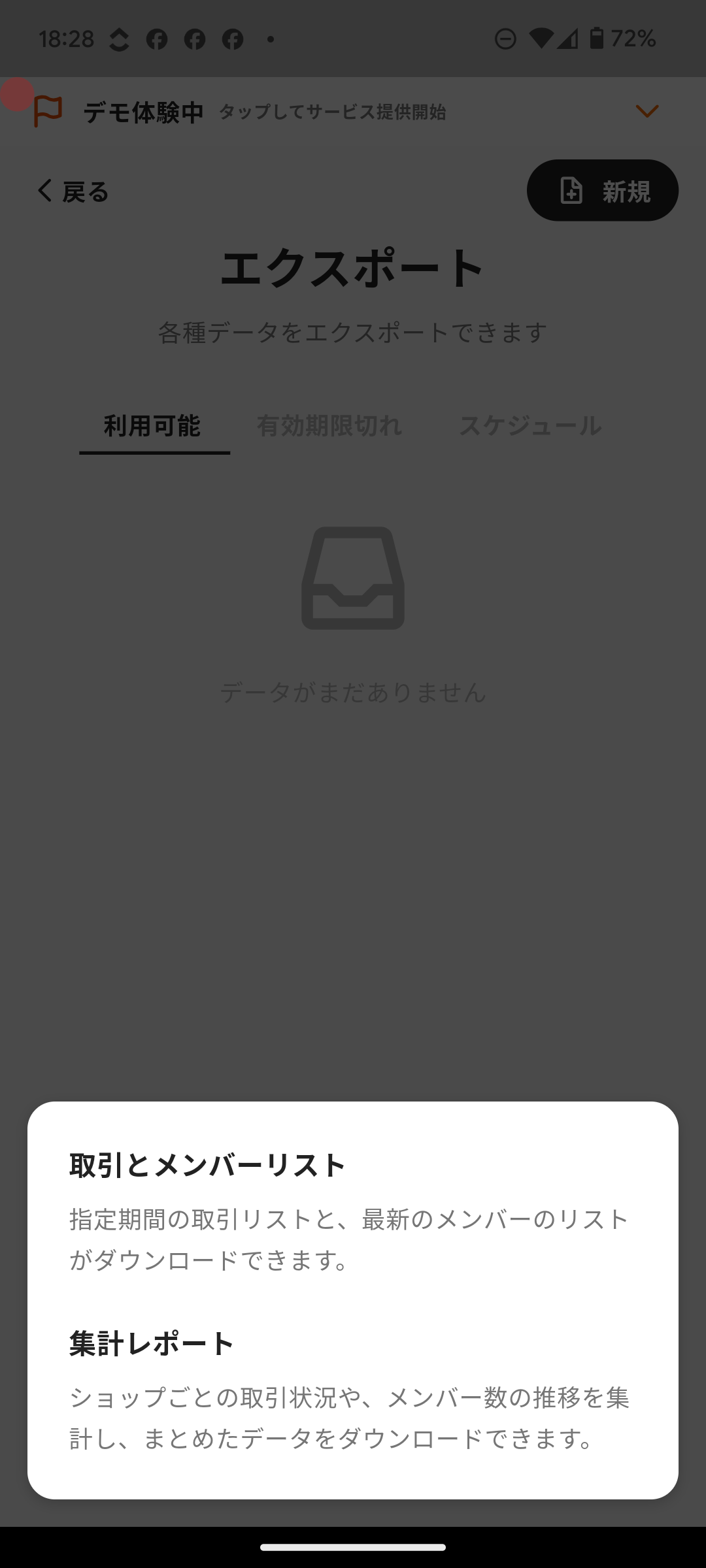
- Tap “New”.
- Choose the data to export.
- Transaction and Member List
- Download a transaction list for the selected period and the latest member list.
- Member List
- Download the latest member list.
- Member List with Soon-to-Expire Balance
- Download a list of members with balances that are nearing their expiry date.
- Summary Report
- Download aggregated data for shop transaction status and member count trends.
- Transaction and Member List
- Select the export period, file format, and target shops, then tap “Continue”.
- Review the download notes and tap “OK”.
Create export data automatically on a schedule
Section titled “Create export data automatically on a schedule”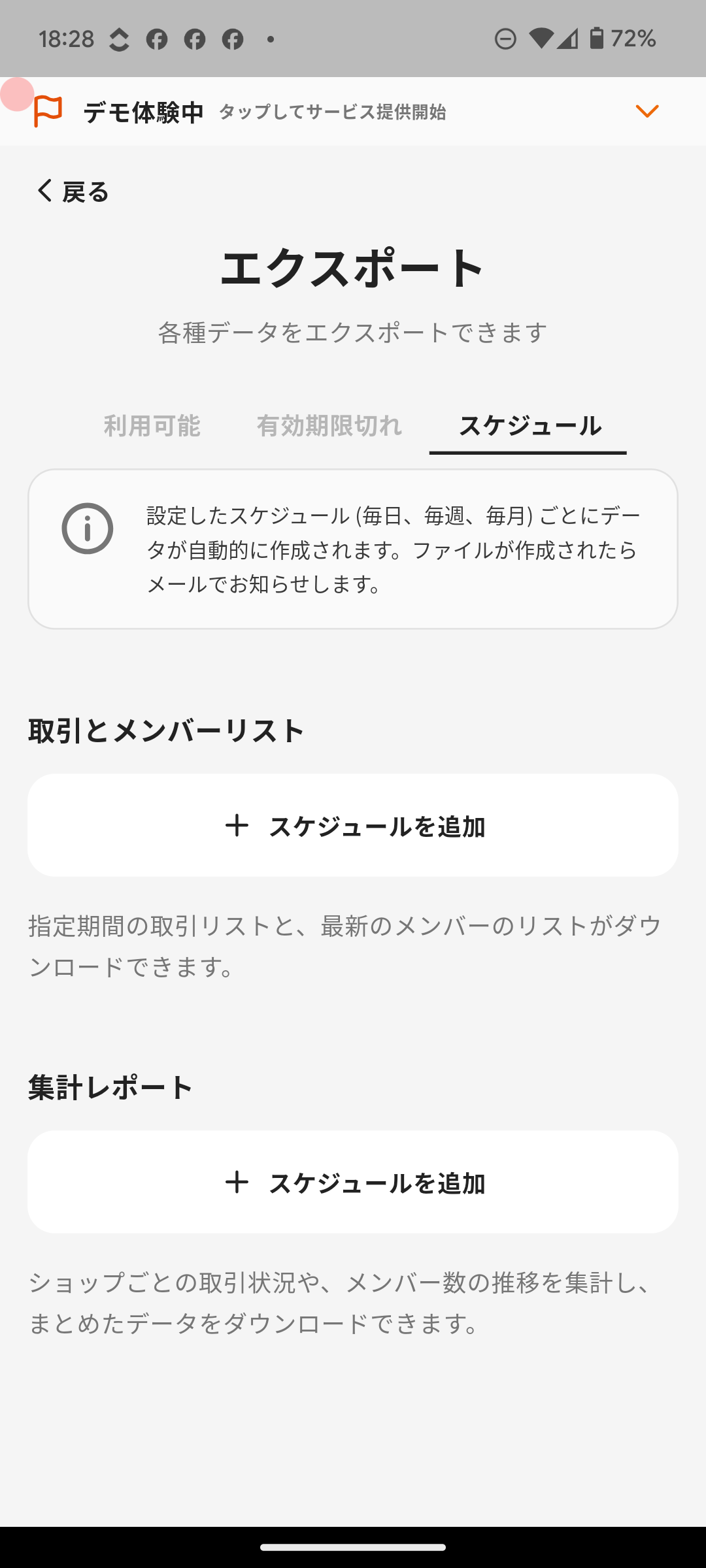
- Tap the “Schedule” tab.
- Tap “Add Schedule” for the target data.
- Transaction and Member List
- Download a transaction list for the selected period and the latest member list.
- Summary Report
- Download aggregated data for shop transaction status and member count trends.
- Transaction and Member List
- Select the schedule interval and download file format, then tap “Done”.
2. Download the File
Section titled “2. Download the File”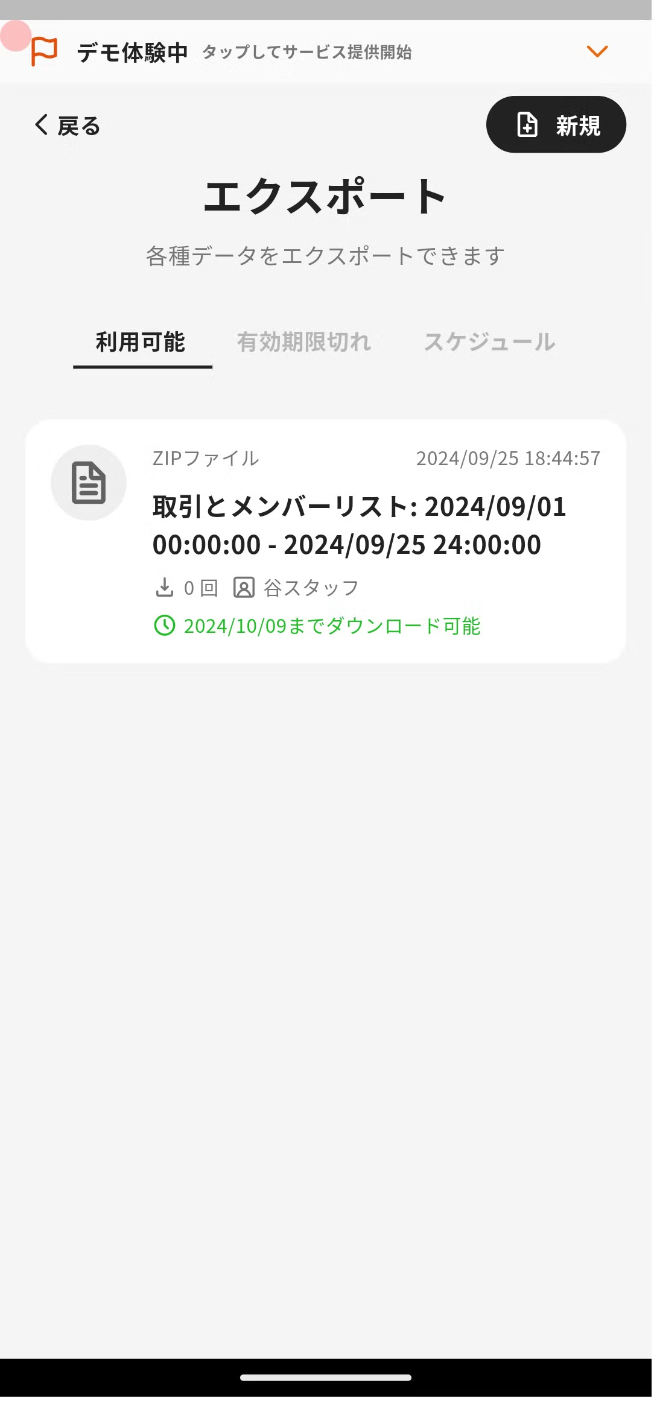
Download the file with the following steps.
- Tap the file created in the “Available Files” tab.
- Choose the download method.
- Download to this device
- Download the file to the device you are using.
- Share download link
- Open the download site from another device such as a PC and download the file.
- Download to this device
- Unzip the downloaded ZIP file before using it.
ℹ️ On the download site, scan the displayed QR code with the camera on a device where Pokepay for Shops is installed. Authentication is completed and the file is downloaded.
If you check “Keep authentication”, you can skip authentication later.
If there is no access for two months, authentication is required again.