Check Total Balance, Members, and Transaction Totals for a Period
Overview
Section titled “Overview”Reports let you check total balance, member counts, and transaction totals for a specific period.
You can also filter by shop to review each shop’s daily results.
Gift issuance by credit card and its cancellations appear as separate items. Issuance is counted in the period containing the issuance date; cancellation is counted in the period containing the cancellation date. Past cancellations remain visible after Gifts are disabled. These items appear when “All Shops” is selected. Tap an item to open its transaction details.
Bank charges, bank-funded Gift issuance, and their respective cancellations appear as four separate items. Charges and issuance are counted by their transaction date; cancellations are counted by their cancellation date. These items appear under “All Shops,” and activity in the selected period remains visible after Bank Account Charge is disabled.
Open Reports
Section titled “Open Reports”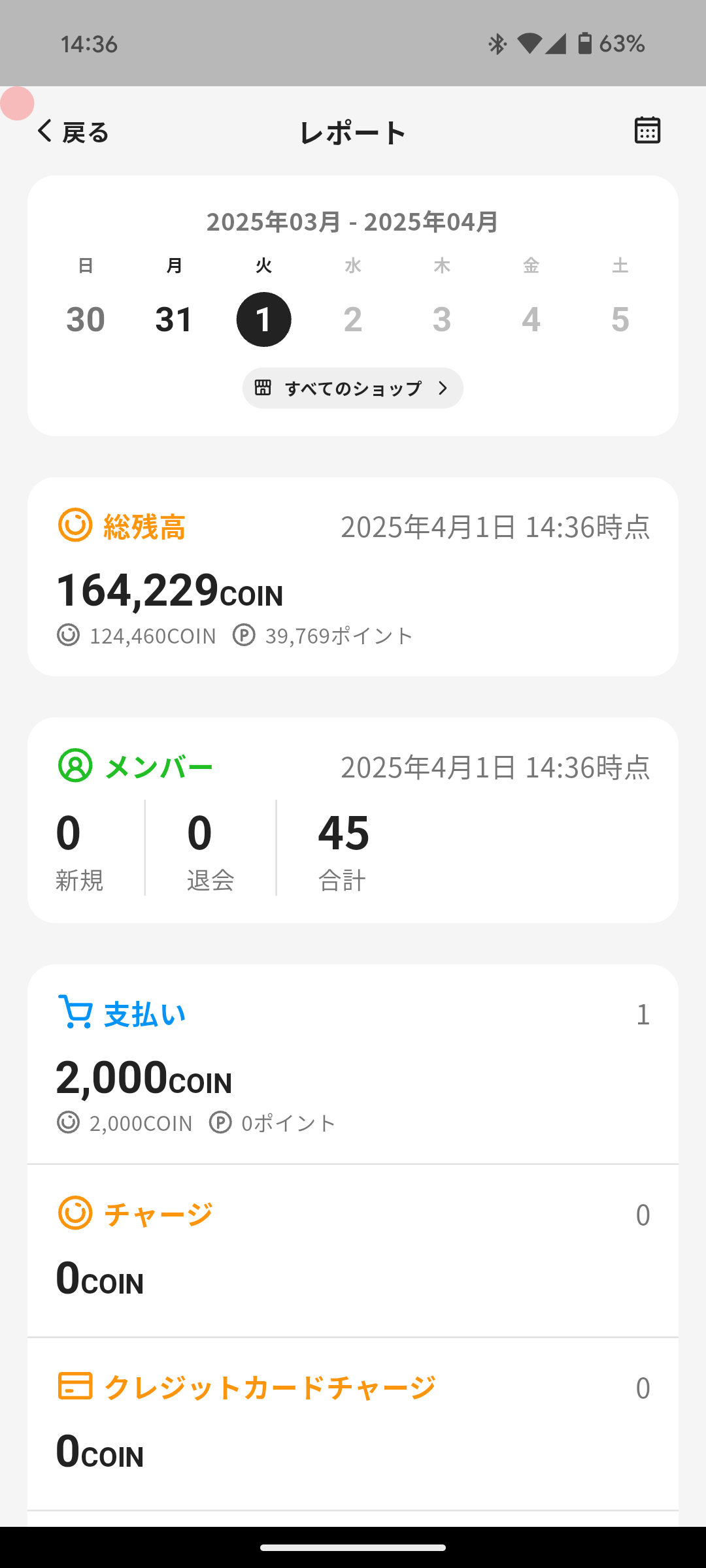
You can open Reports with the following steps.
- Tap “Menu” in the navigation bar.
- Tap “Reports”.
Filter by Period
Section titled “Filter by Period”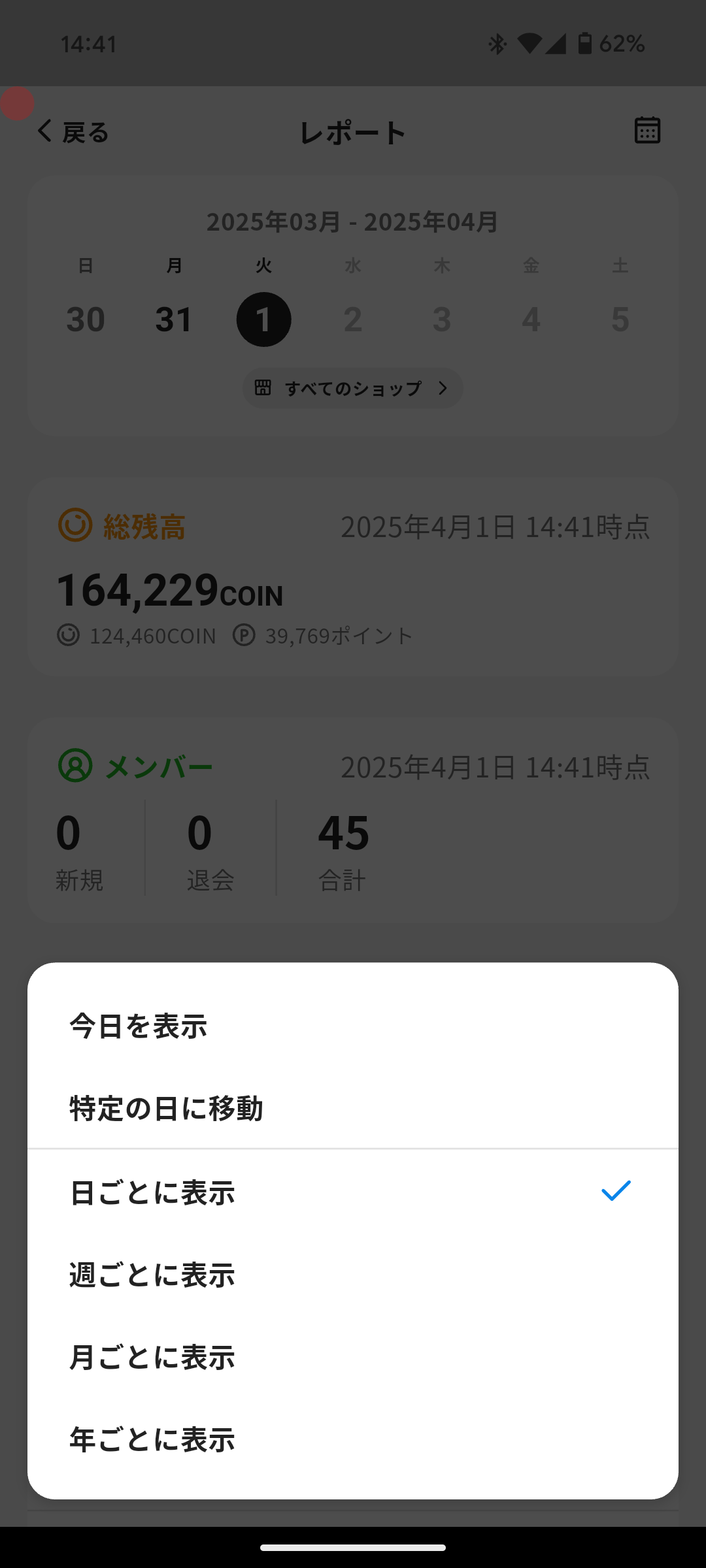
You can show reports for a specific period with the following steps.
- Tap the calendar icon in the top right and select the display interval.
- Daily
- Weekly
- Monthly
- Yearly
- Tap the calendar icon in the top right and select the period to move to.
- When daily display is selected:
- Show today
- Move to a specific day
- When weekly display is selected:
- Show this week
- Move to the week of a specific day
- Change the first day of the week
- When monthly display is selected:
- Show this month
- Move to a specific month
- When yearly display is selected:
- Show this year
- Move to a specific year
- When daily display is selected:
Filter by Shop
Section titled “Filter by Shop”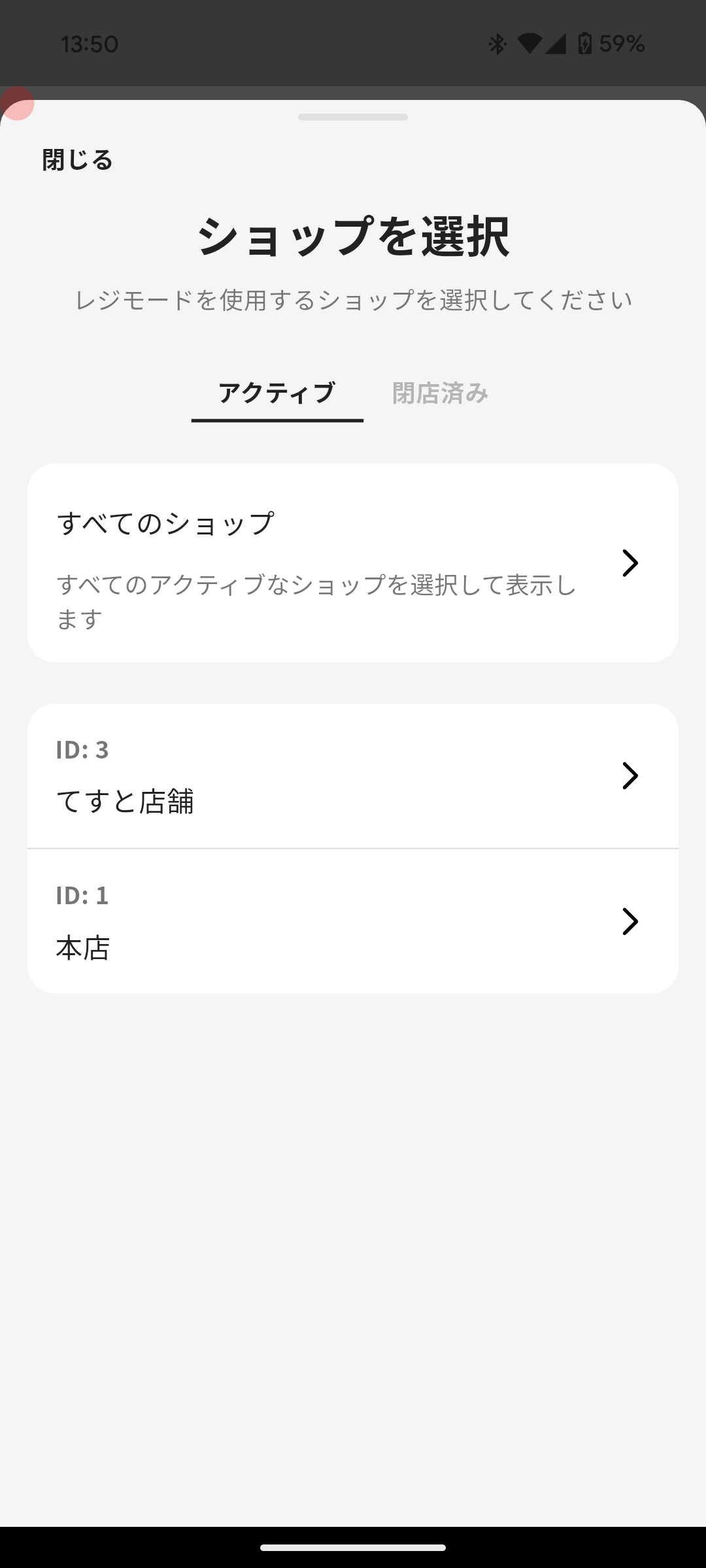
You can show reports for a specific shop with the following steps.
- Tap the shop selection button. The default is “All Shops”.
- Select a shop.
- Active
- Select one shop from active shops.
- Closed
- Select one shop from closed shops.
- Active
ℹ️ Total Balance, Members, and Balance Expiration are shown only when “All Shops” is selected.
