Close a Shop
## Overview
If you use multiple shops and one of the shops that accepts your e-money closes, close the shop in the app.
A closed shop can no longer be selected as the shop for in-person transactions, which prevents new transactions from being created for that shop.
Closing a shop does not delete past transaction history.
## Close a Shop
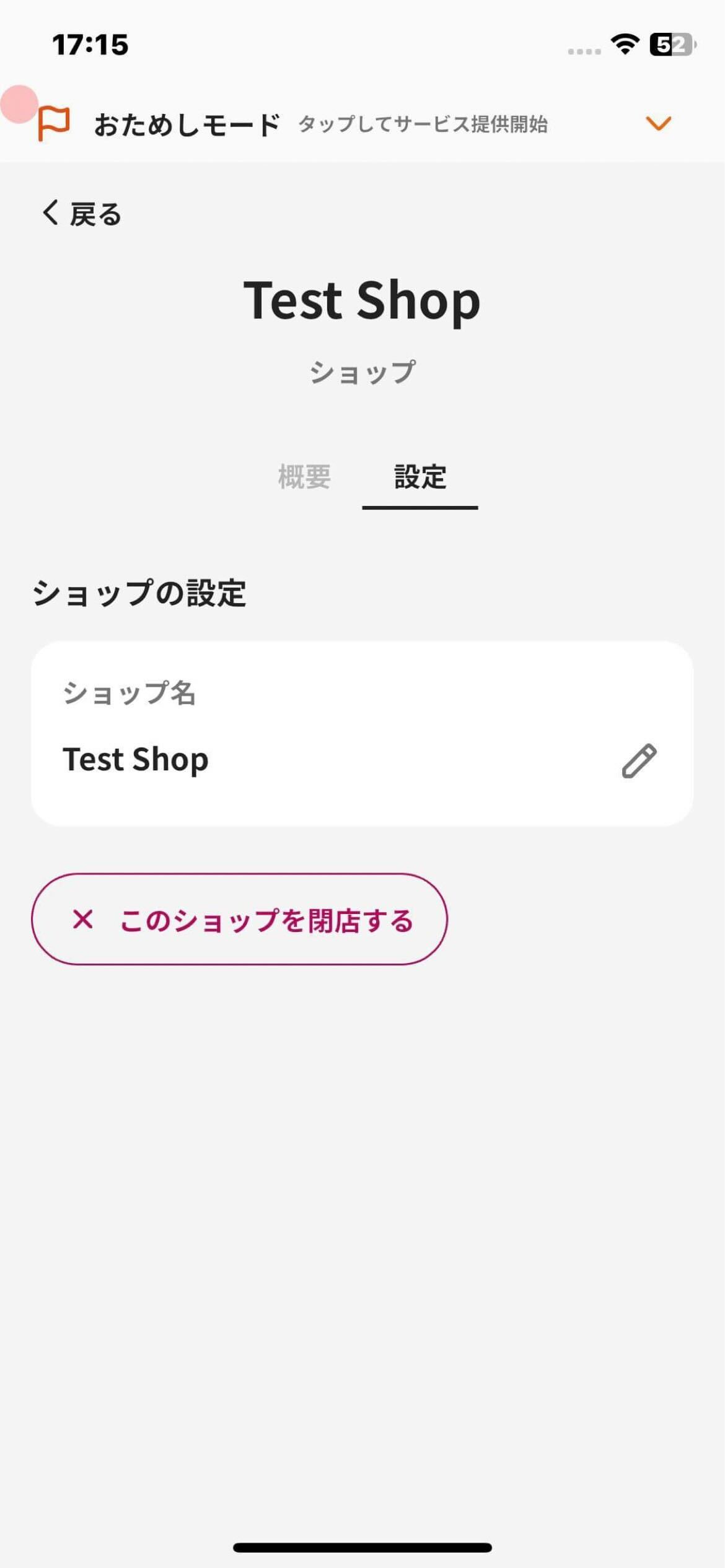
Follow these steps to close a shop.
1. Tap "Menu" in the navigation bar.
2. Tap "Shops".
3. Select the shop to close from the list.
4. Tap "Details".
5. Tap "Close this shop".
6. Review the confirmation screen and execute the close action.
<div class="notion-gray-bg">
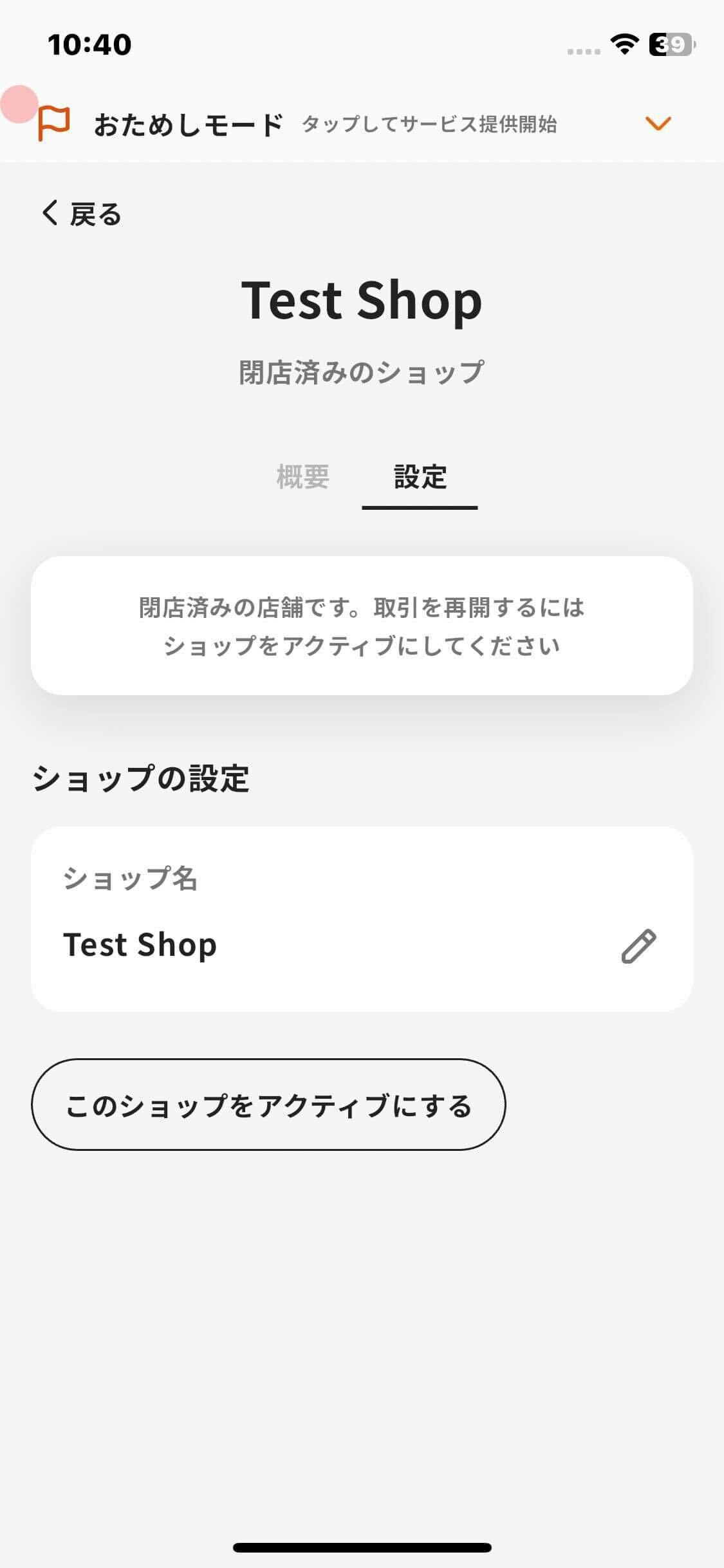
> ℹ️ Closed shops are listed under closed shops. You can reactivate the shop from "Details" → "Activate this shop".
>
> 
</div>
Overview
Section titled “Overview”If you use multiple shops and one of the shops that accepts your e-money closes, close the shop in the app.
A closed shop can no longer be selected as the shop for in-person transactions, which prevents new transactions from being created for that shop.
Closing a shop does not delete past transaction history.
Close a Shop
Section titled “Close a Shop”
Follow these steps to close a shop.
- Tap “Menu” in the navigation bar.
- Tap “Shops”.
- Select the shop to close from the list.
- Tap “Details”.
- Tap “Close this shop”.
- Review the confirmation screen and execute the close action.
ℹ️ Closed shops are listed under closed shops. You can reactivate the shop from “Details” → “Activate this shop”.

