Credit Card Charge Settings for the Legacy Stripe Integration
Overview
Section titled “Overview”Add Credit Card Charge as a charge method for members.
When this feature is on, members can add charged balance by credit card in addition to cash charge.
ℹ️ This page is for businesses already using Credit Card Charge through the legacy Stripe integration. If Payouts appears in Menu, see Check Payouts and Set Your Payout Account.
Start Using Credit Card Charge
Section titled “Start Using Credit Card Charge”For businesses on this legacy integration, Stripe is the payment service for Credit Card Charge. Start using the feature in this order.
- Set up the connection: Connect Stripe and Pokepay so members can use Credit Card Charge.
- Turn on the feature: Turn on Charge from card in the Shop App.
- Check deposits: Sales from Credit Card Charge are deposited from Stripe to your bank account.
The default Stripe deposit schedule is weekly on Fridays. You can change the day and frequency from the Stripe Dashboard.
For more details about Stripe, see https://stripe.com/jp.
Connect Stripe and Pokepay
Section titled “Connect Stripe and Pokepay”Open the Connection Screen from the Shop App
Section titled “Open the Connection Screen from the Shop App”- Tap Menu > E-money Settings > Charge > Credit card.
- Tap Connect account.
- On the Activate card charge screen, select Open in browser or Send Link.
Use Send Link if you want to continue setup on a larger screen such as a PC or tablet.
Create a Stripe Account
Section titled “Create a Stripe Account”Follow Stripe’s instructions to create your account. You may receive a confirmation email from Stripe. If you receive one, confirm your email address before continuing.
Stripe may ask for identity or business verification documents, such as:
- identity documents such as a driver’s license
- corporate registration information and supporting documents for corporations
- business registration documents for sole proprietors
Complete the Stripe Connection
Section titled “Complete the Stripe Connection”If the Stripe connection screen is no longer open, reopen it from the Shop App.
- Tap Menu > E-money Settings > Charge > Credit card.
- Tap Connect account.
- On the Activate card charge screen, select Open in browser or Send Link.
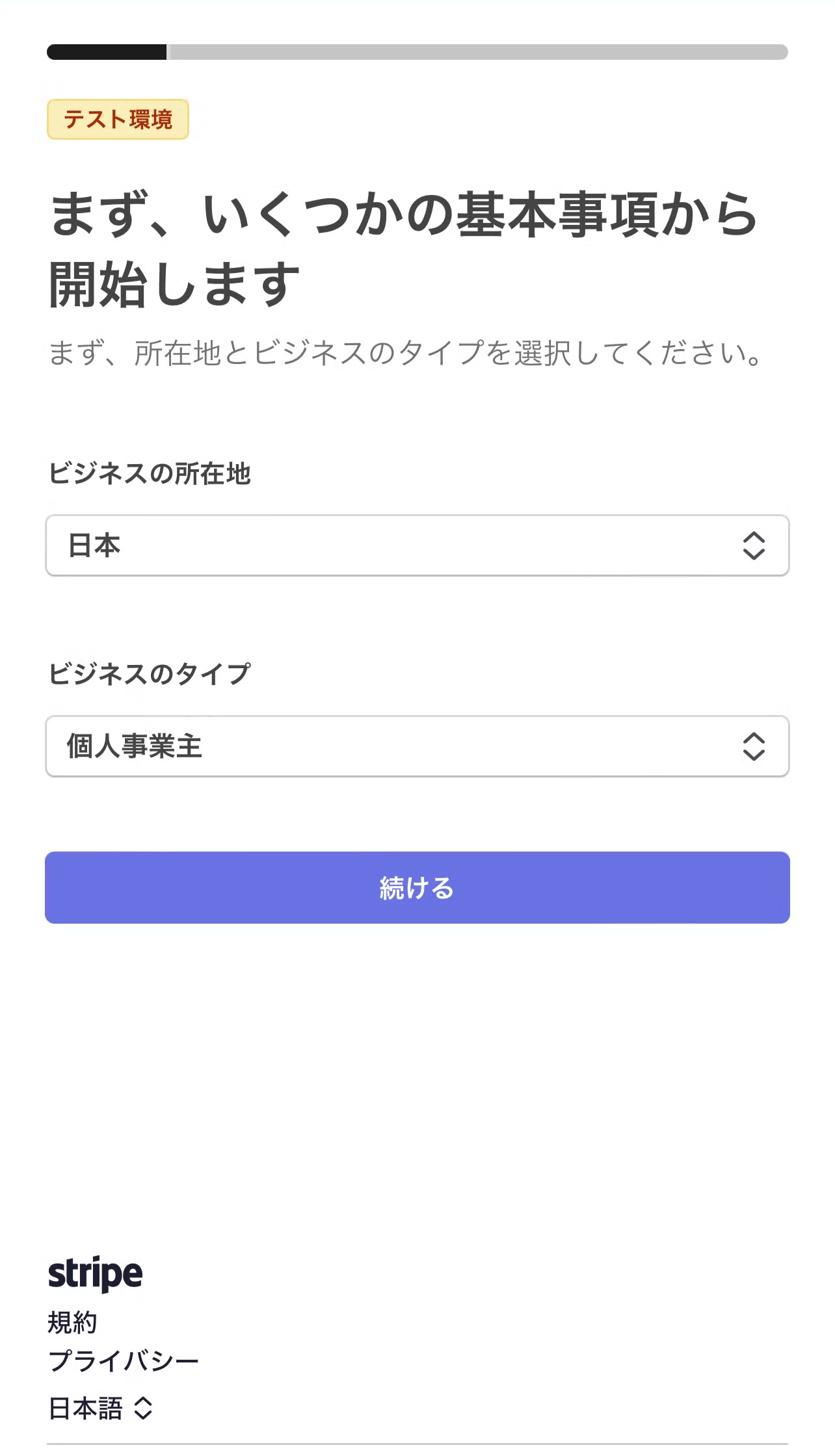
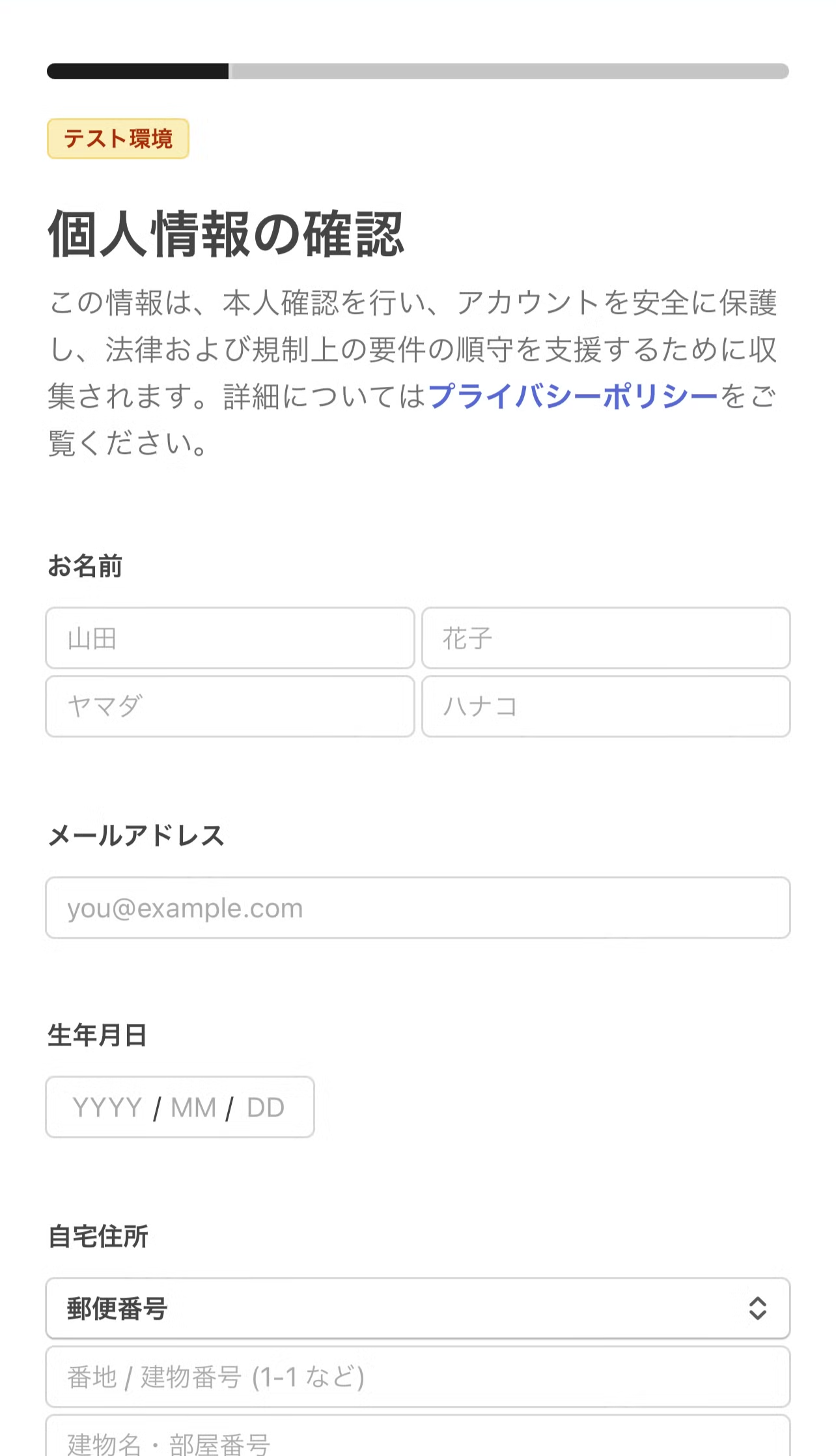
Follow Stripe’s instructions and enter the required information. Some fields differ for corporations and sole proprietors.
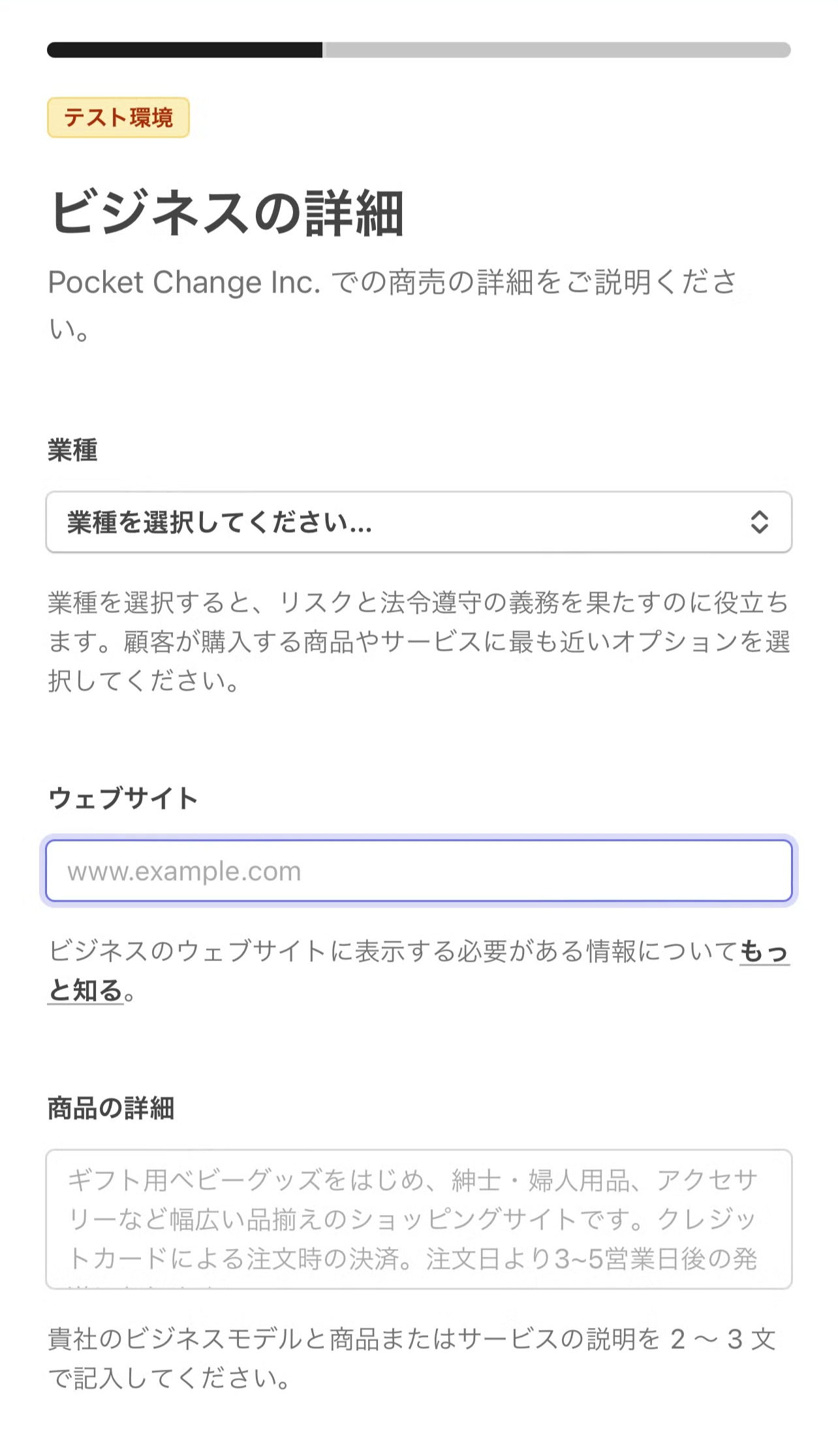
For the business website, enter the URL of your e-money, such as example.pkpy.jp. If you enter another website URL, Stripe review may not pass.
To copy the e-money URL:
- Open the Shop App.
- Tap the URL below the e-money name on Home.
- Copy the member app URL that opens in the browser and paste it into Stripe.
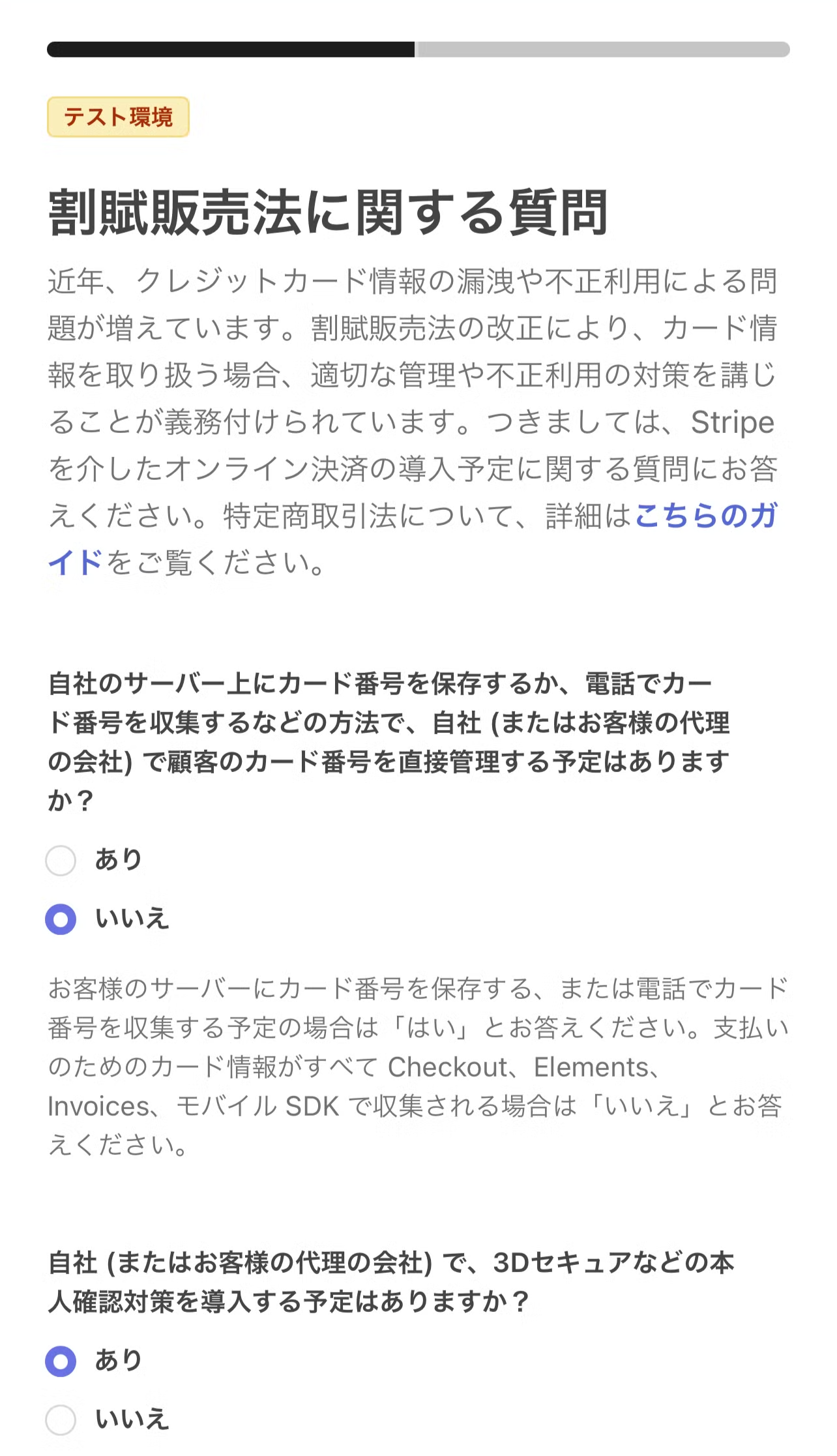
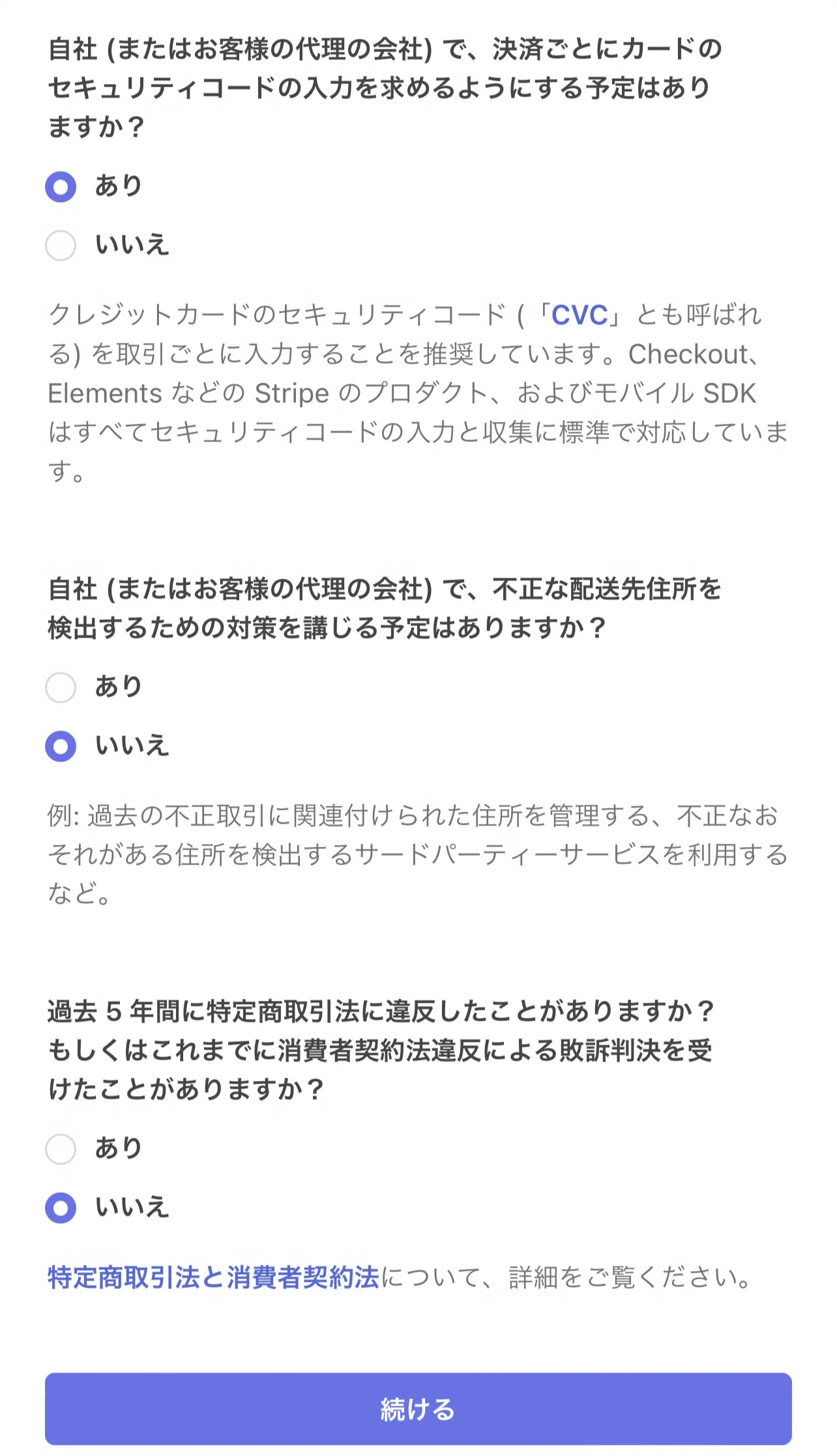
When Stripe asks questions related to the Installment Sales Act, use the screenshots below as reference examples.
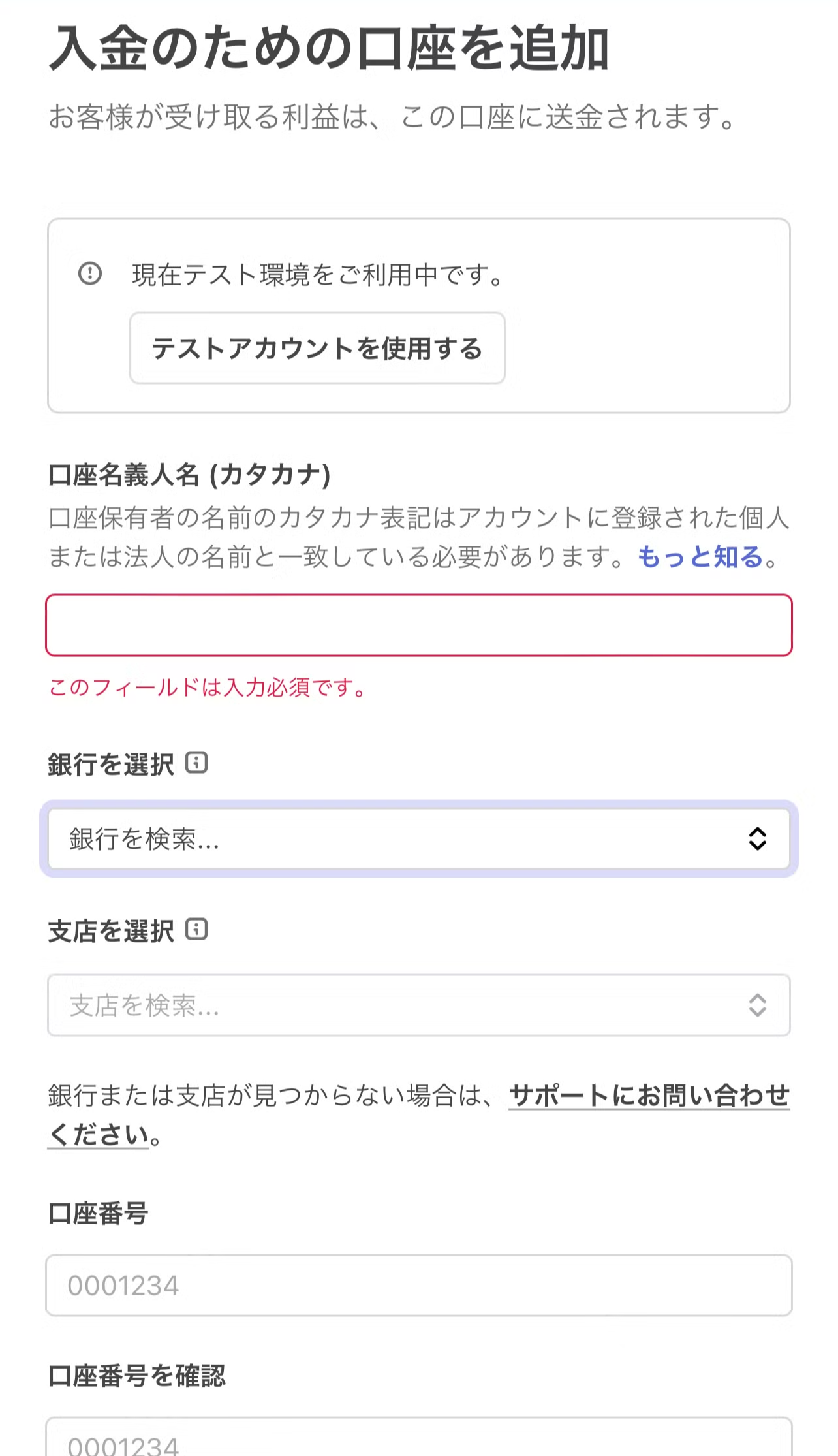
Continue the setup by adding the bank account for deposits and entering the customer-facing display information.
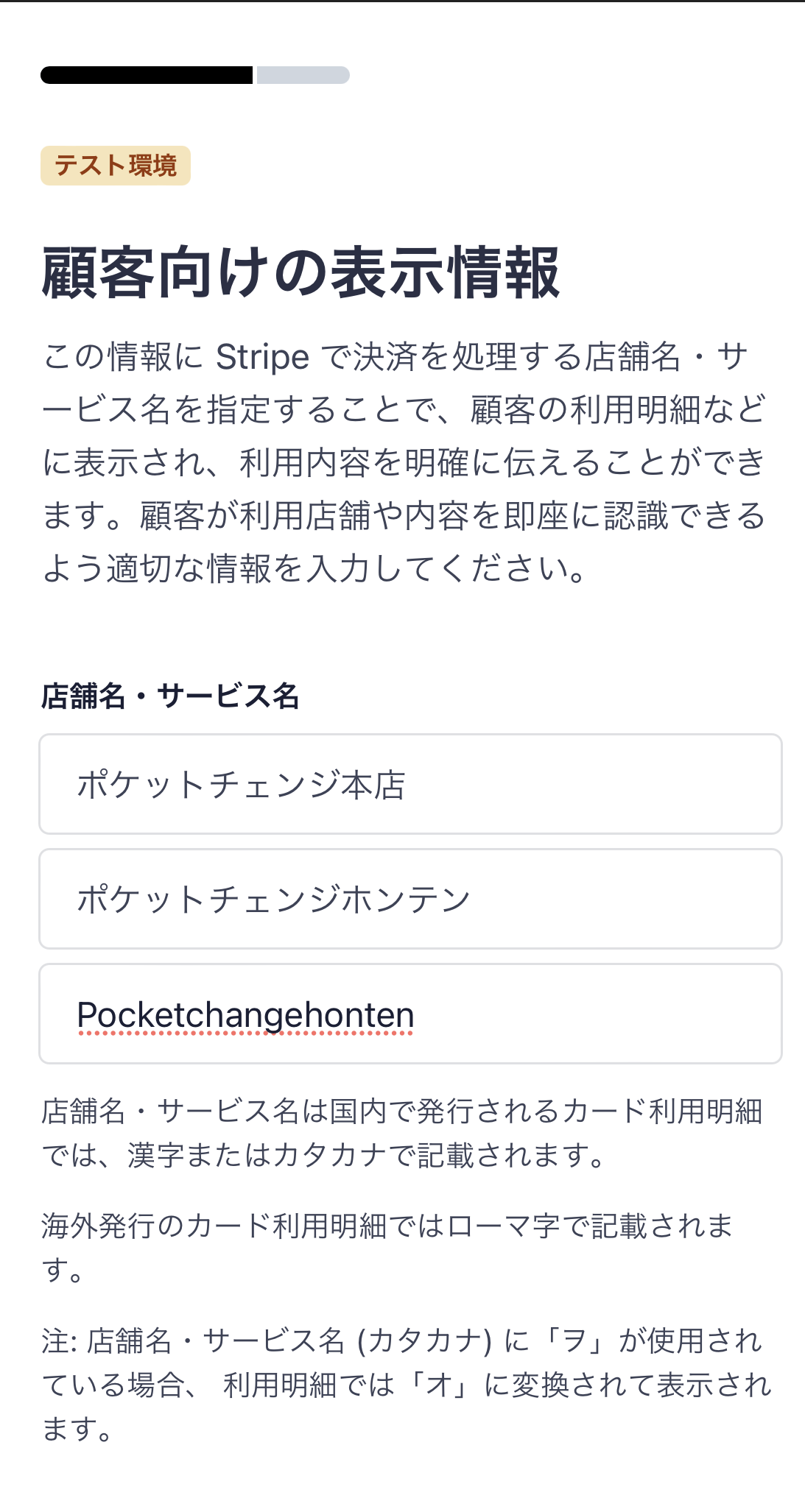
When you reach the confirmation screen, review the information and submit it. When Stripe shows a screen asking you to return to the app, return to the Shop App.
Stripe may request additional information later. Check the Stripe Dashboard, Stripe email notifications, or the Shop App if you need to continue entering information.
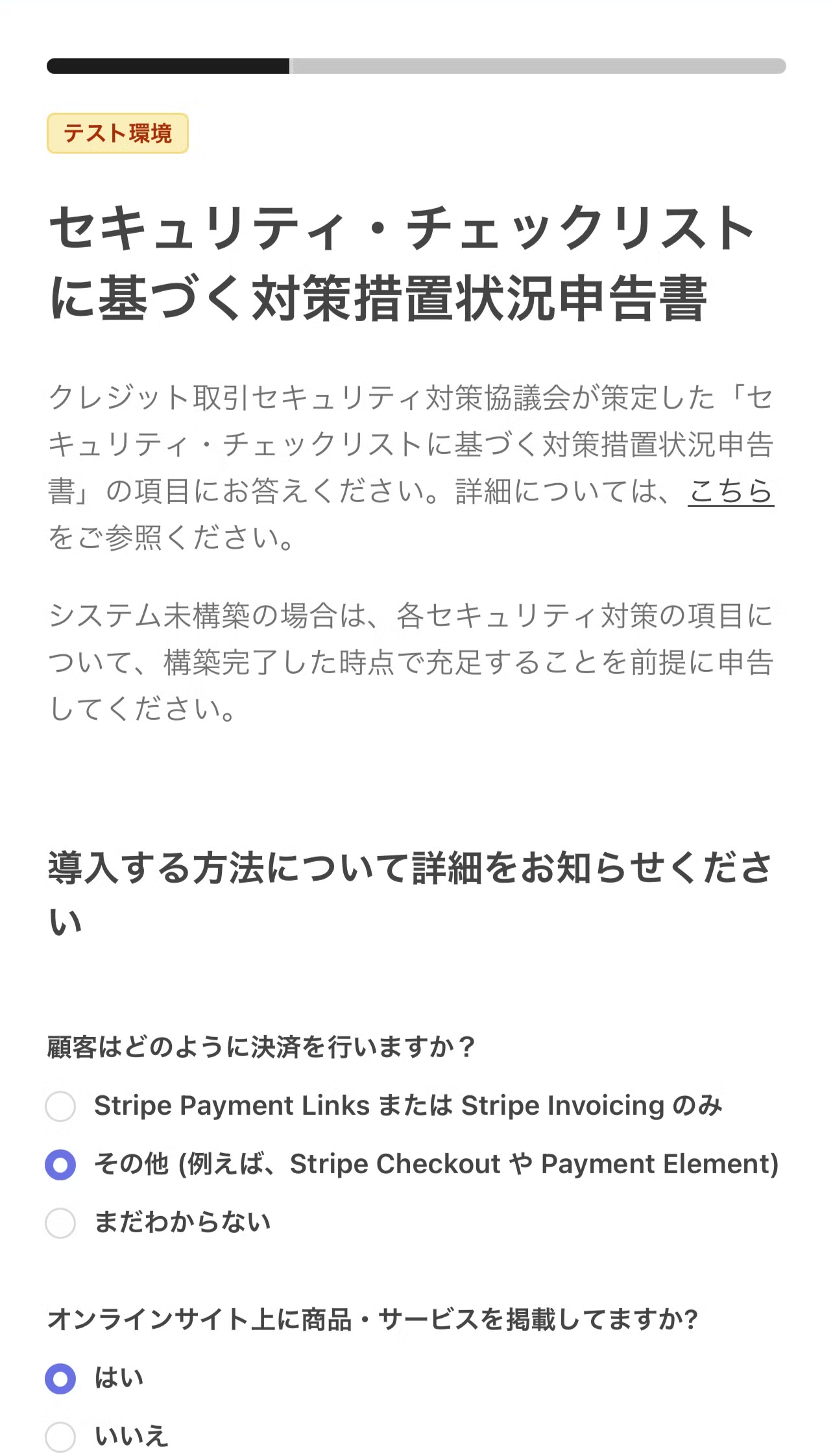
For the security checklist declaration, use the screenshots below as reference examples.
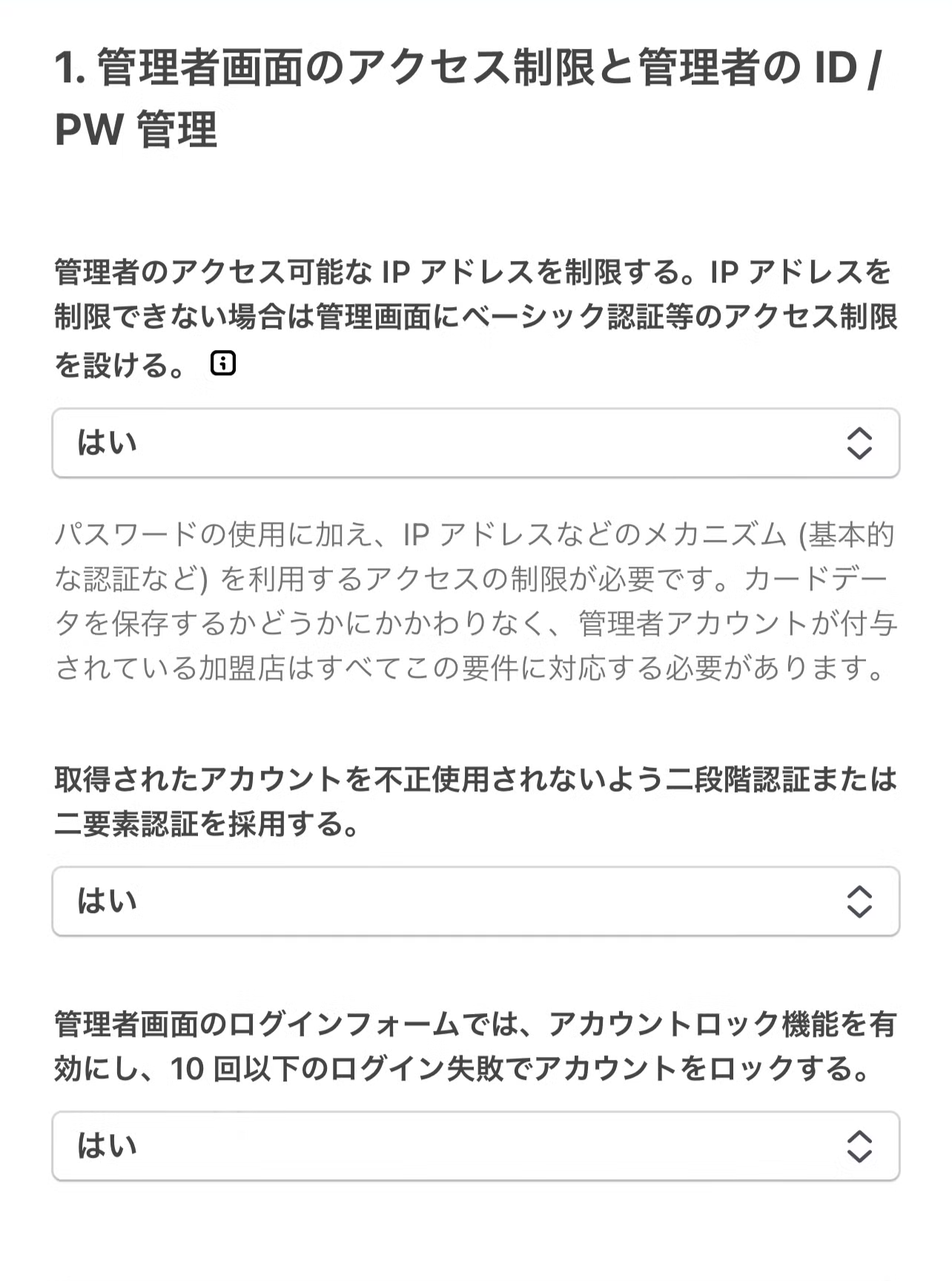
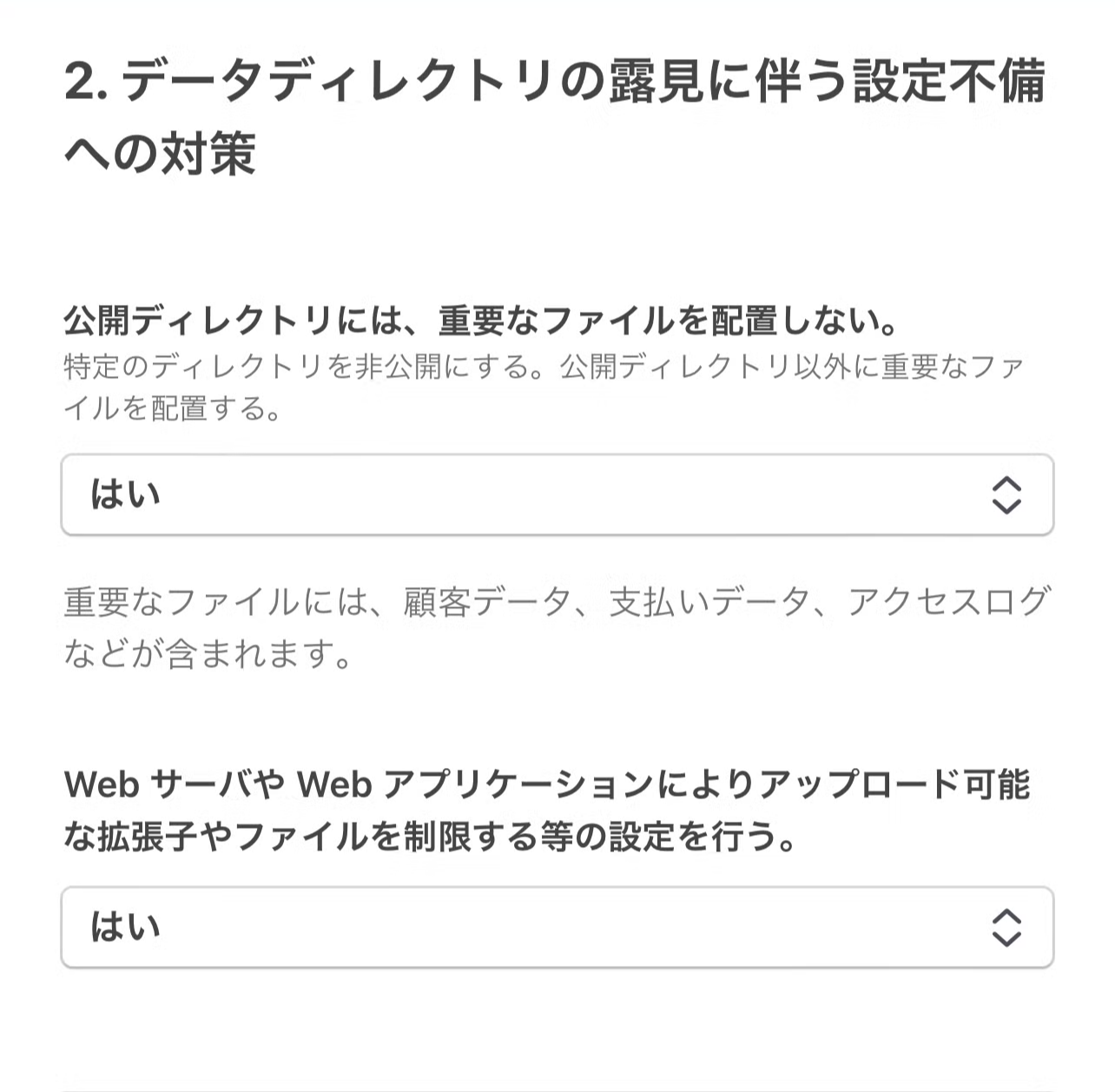
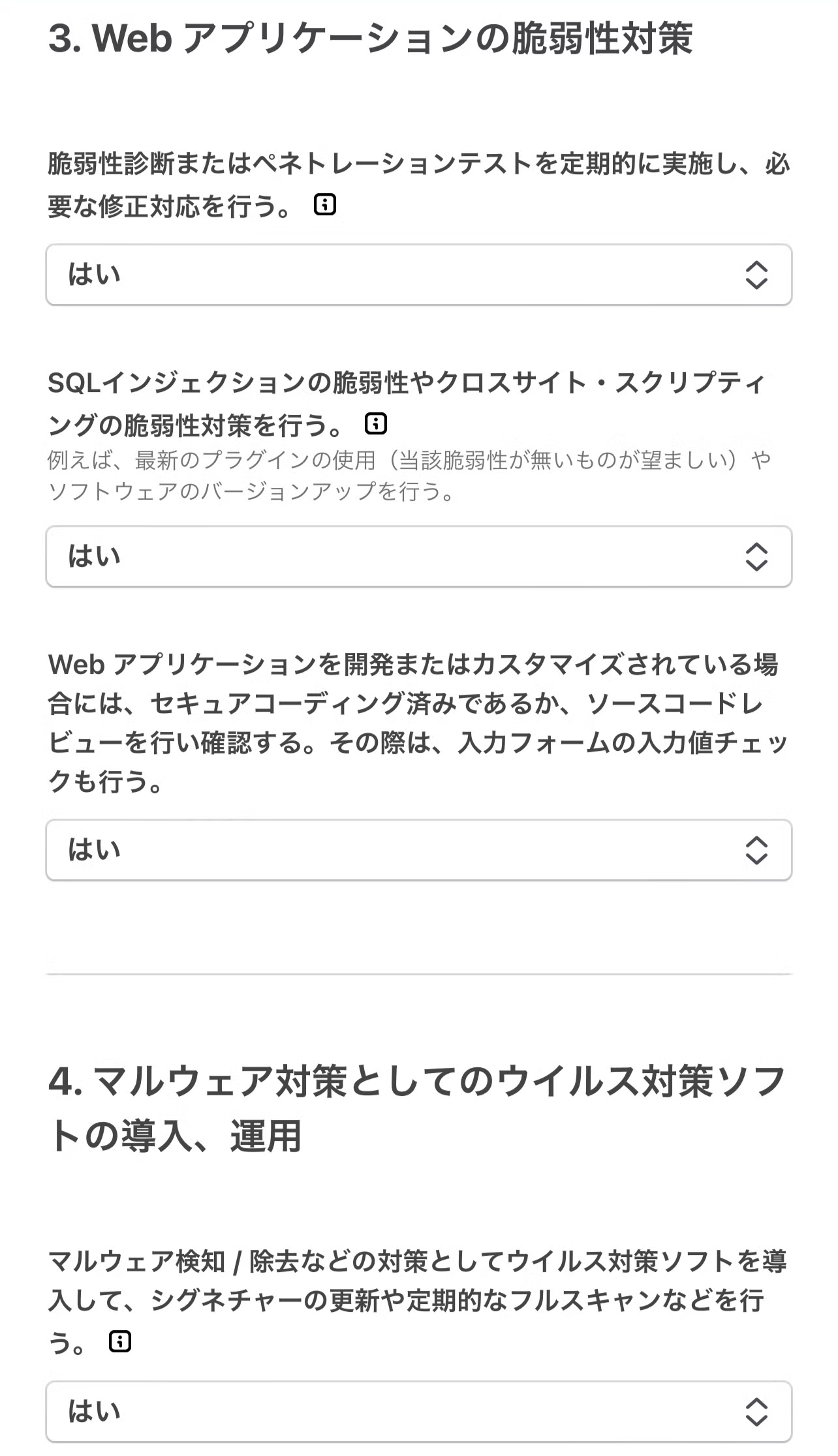
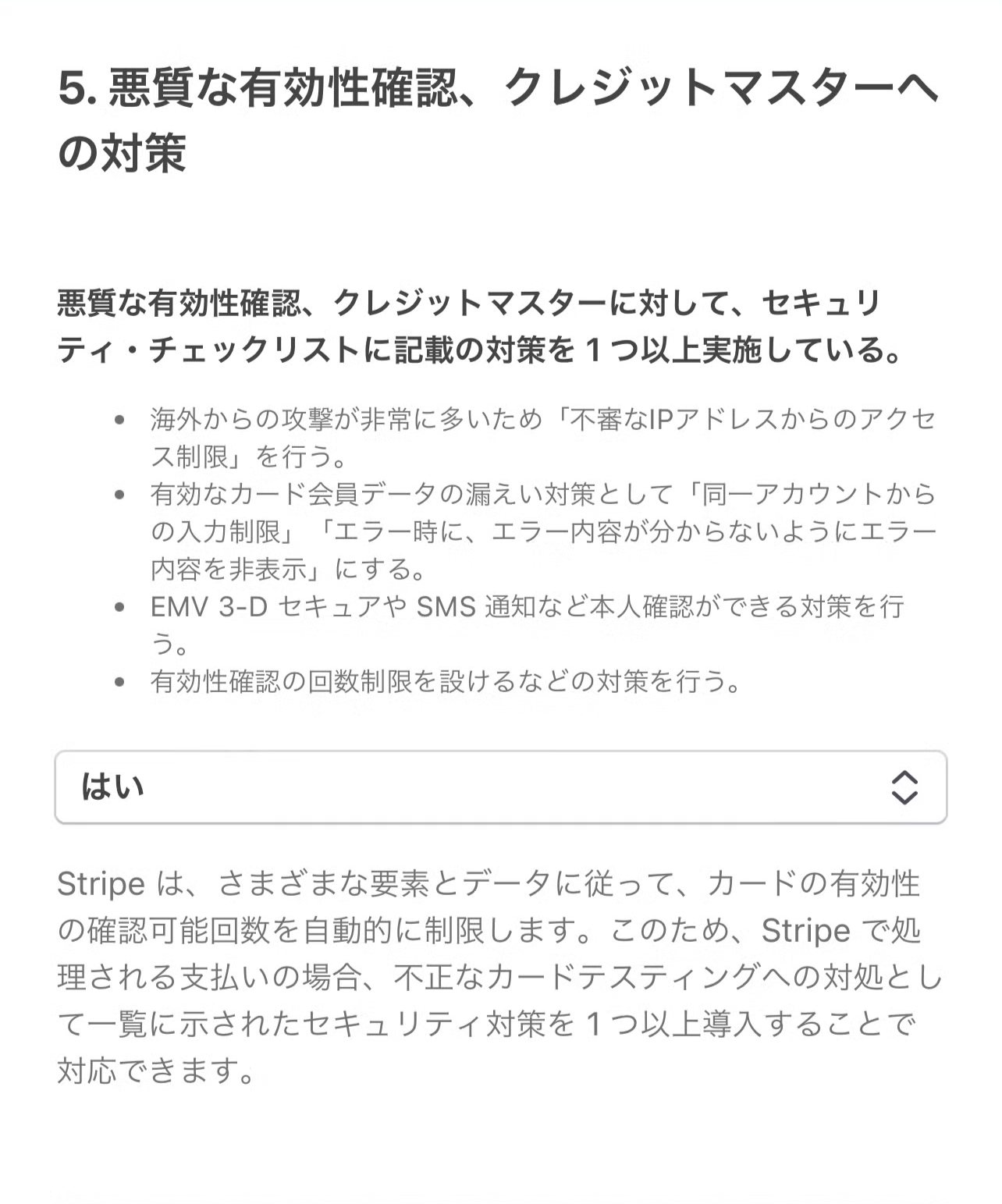
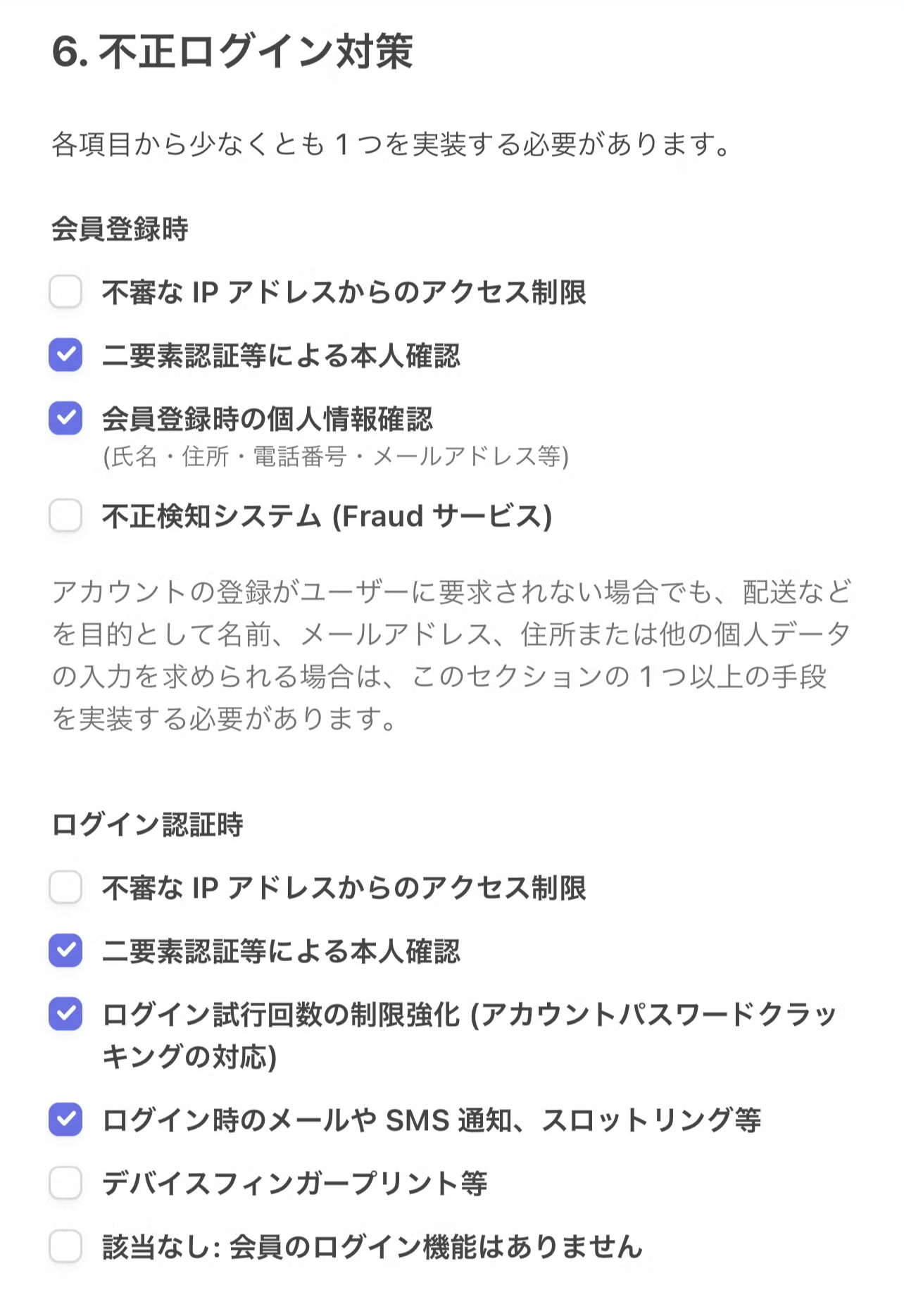
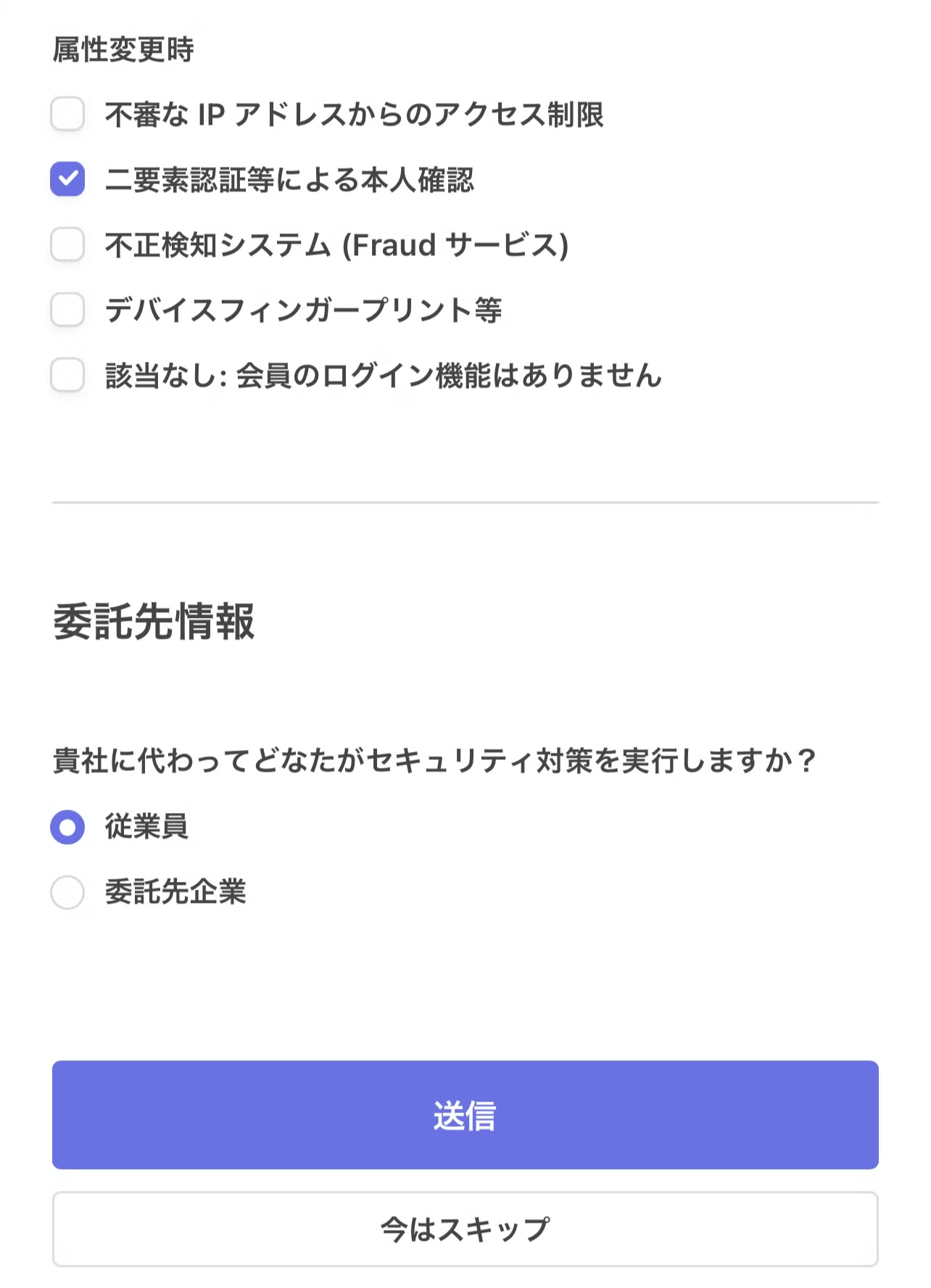
If Stripe asks you to upload identity documents, upload them. If you skip the upload, you may need to complete it later from the Stripe Dashboard.
If Stripe asks for more information, confirm the details again and submit. When Stripe shows a screen asking you to return to the app, return to the Shop App.
Turn On Charge from Card
Section titled “Turn On Charge from Card”After Stripe setup is complete, turn on Charge from card in the Shop App.
- Tap Menu > E-money Settings > Charge > Credit card.
- Turn on Charge from card.
You can also configure:
- Chargeable Amount Preset
- Custom charge input
- Minimum input amount
Member Operation
Section titled “Member Operation”When Charge from card is on, members can charge their balance by credit card.
Use this flow when you need to guide members.
- Tap Charge on the Home tab.
- Tap Card.
- For the first use, follow the instructions to register a credit card.
- Enter the amount and complete the charge.
Frequently Asked Questions
Section titled “Frequently Asked Questions”Where can I check sales and deposit settings?
Section titled “Where can I check sales and deposit settings?”Check Credit Card Charge sales, deposit bank account settings, and deposit schedules in the Stripe Dashboard.
https://dashboard.stripe.com/login?locale=ja-JP
Are there fees?
Section titled “Are there fees?”Stripe does not charge a monthly fee for use, but Stripe payment processing fees apply.
Check Stripe’s terms during account connection for details.
- Credit Card Charge is provided by Stripe. Contact Stripe for review or Stripe-side activation questions.
- This page provides example answers and does not guarantee Stripe review results.
- Stripe may change its screens or required fields.
